
Rules
Rules are short, plain-language statements that the AI must follow when generating diagrams and documents. They are the simplest part of a preset: each rule is a single instruction, written the way you'd tell a teammate.
Use rules to lock in the conventions that should always hold, for example:
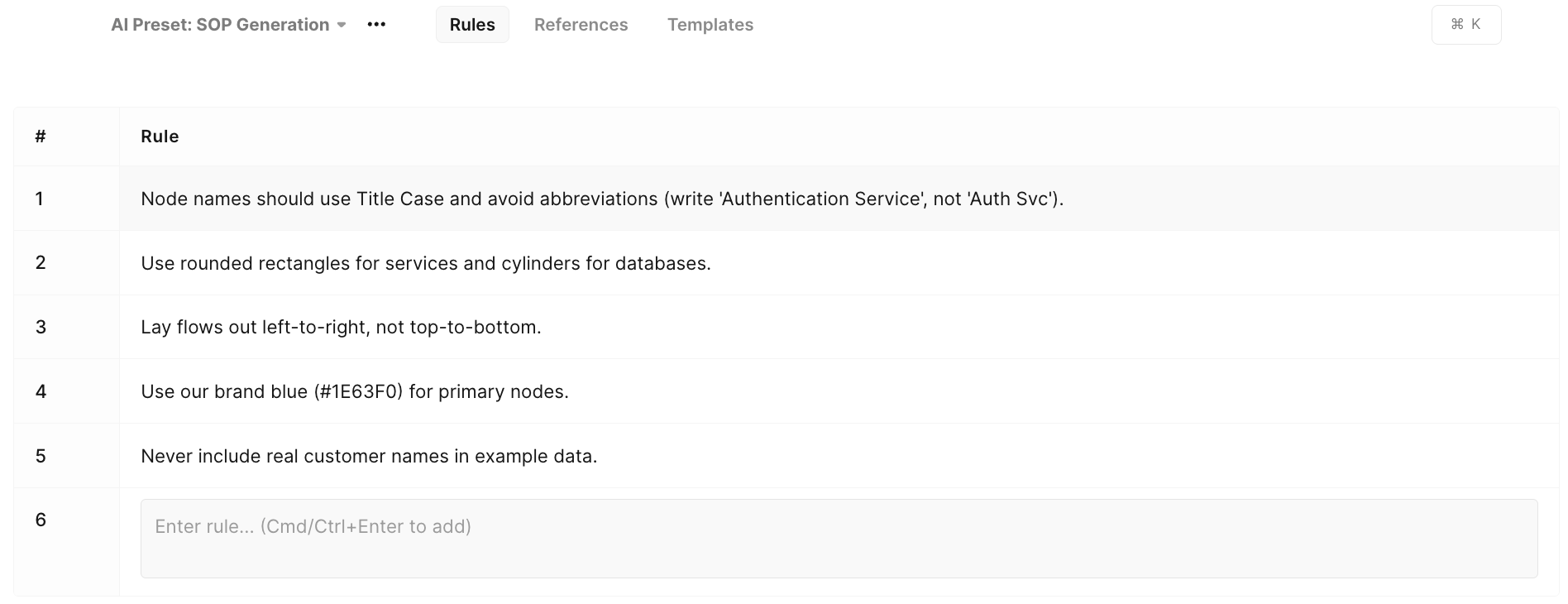
- Naming – "Node names should use Title Case and avoid abbreviations (write 'Authentication Service', not 'Auth Svc')."
- Styling – "Use rounded rectangles for services and cylinders for databases."
- Layout – "Lay flows out left-to-right, not top-to-bottom."
- Branding – "Use our brand blue (#1E63F0) for primary nodes."
- Policies – "Never include real customer names in example data."
Rules are most effective when each one expresses a single, unambiguous requirement. Prefer several focused rules over one long paragraph.
Who can manage rules
- Any team member can see the rules in a preset and benefit from them during generation.
- Team admins can add, edit, and delete rules.
Managing rules
Rules live in the Rules tab of a preset. Each rule records who created it and when it was last updated.
Add a rule
- Open the preset and go to the Rules tab.
- Add a new rule and type the statement.
- Save. The rule applies to every future generation that uses this preset.
Edit a rule
Edit the text of an existing rule in place. The update applies on the next generation – there is no separate publish step for rules.
Delete a rule
Remove a rule from the Rules tab. It will no longer be applied.
How rules are used in generation
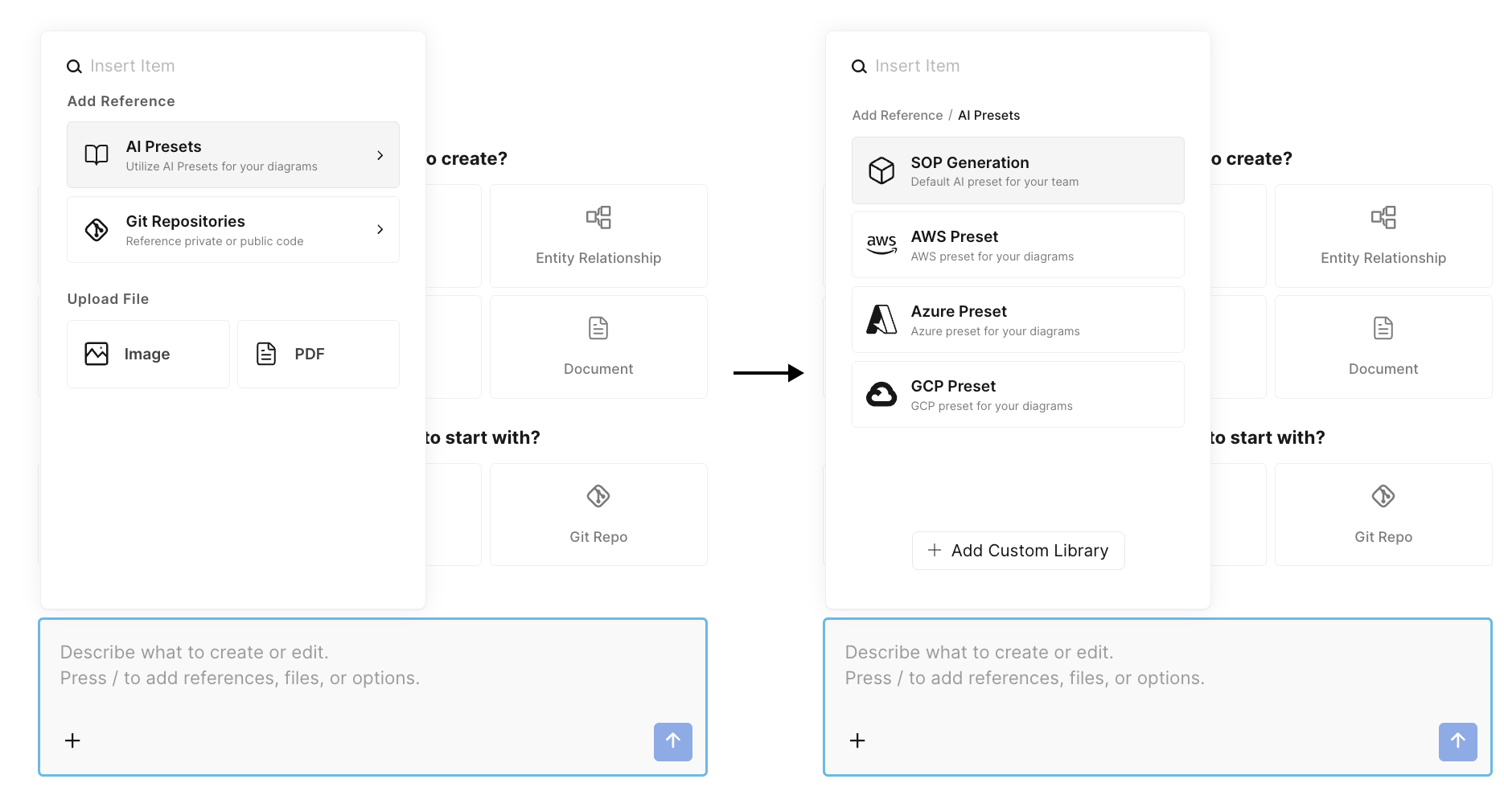
When you generate with a preset, all of its rules are passed to the AI as guidelines that constrain the output — they aren't filtered or selected. The AI applies them alongside the relevant template and references that were chosen for your request.
Because every rule is always applied, keep the list focused. Rules that contradict each other or the user's prompt can produce inconsistent results, so review the set periodically and remove anything stale.
Citations
After a diagram is generated, Eraser shows which rules it actually applied, so the output is auditable. In the AI chat, the diagram displays a citation chip (e.g. "3 rules"); clicking it opens a Rules Applied view split into two sections:
- Applied Rules — rules the AI actively used, each with a short summary and a one-line explanation of how it was applied.
- Policy Violations — cases where a rule overrode or blocked your request, with an explanation of why.
Only rules the AI genuinely enforced are cited, and each links back to its source rule in the preset.
Updated 16 days ago