Templates
Templates are starting structures that the AI fills out. A template is a real Eraser file – it can contain a diagram (a template diagram), a document (such as an SOP), or both. When a template is applied during generation, the AI uses it as the scaffold and completes it for the specific request, keeping the structure, sections, and conventions you’ve already laid out.
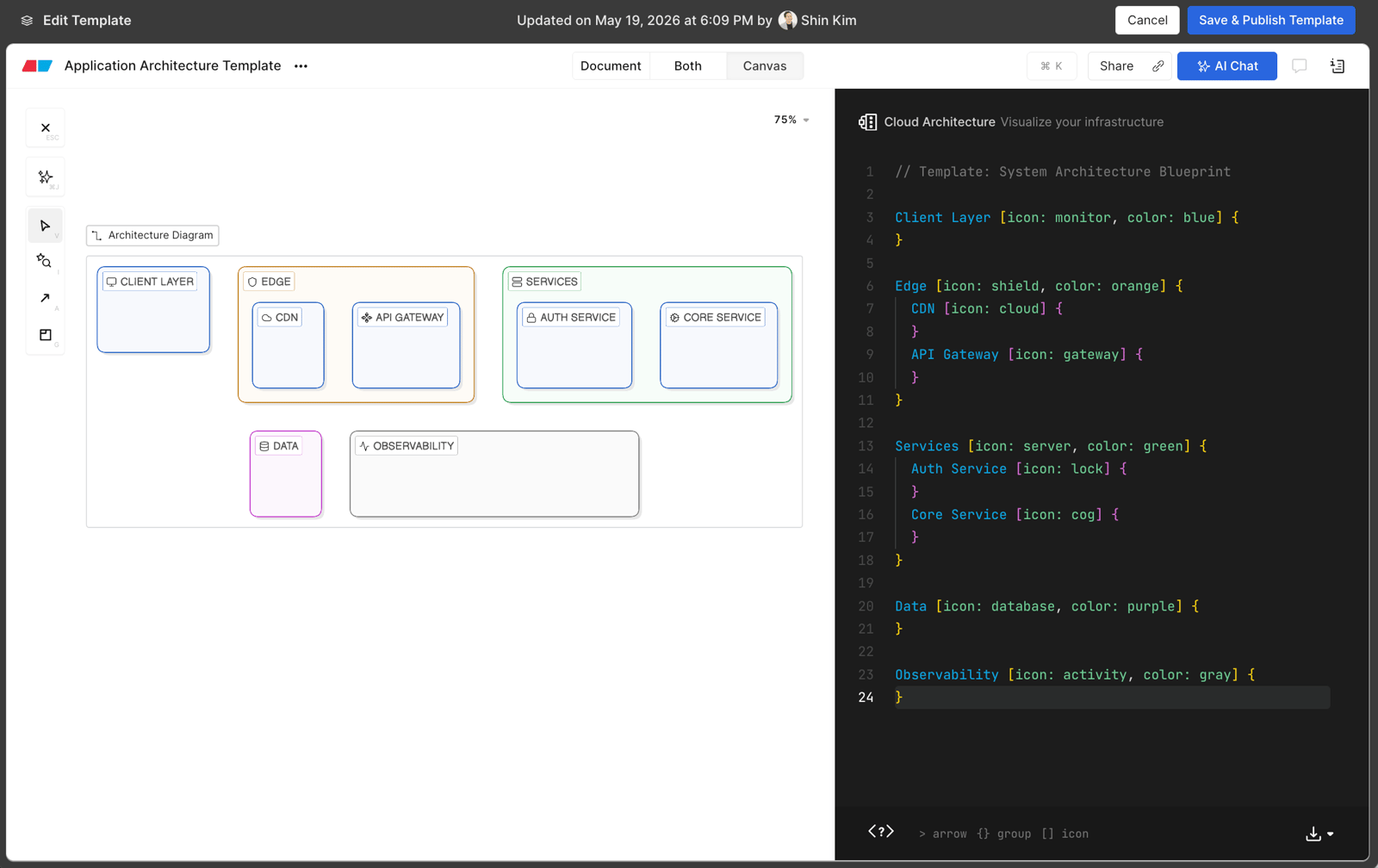
Use templates when you want output to follow a consistent shape, for example:
- A standard architecture diagram layout that every new service diagram should match.
- An SOP document with fixed sections (Purpose, Steps, Rollback, Owners) that the AI fills in.
- A design doc skeleton the AI populates from a prompt.
Because a template is a normal Eraser file, you author it with the full editor – diagrams, notes, and formatting – rather than a limited form.
Who can manage templates
- Team admins add a template to (or remove it from) a preset.
Managing templates
Templates appear in the Templates tab of a preset. Each row shows the file name, who last published it, when, and its publish status.
Add a template
- Author an Eraser file with the diagram and/or document structure you want.
- Publish it (see below) so a version exists for the AI to use.
- In the preset’s Templates tab, add the file as a template.
You can also create a brand-new template file directly from the Templates tab.
Edit a template
Open the underlying Eraser file and edit it like any other file. Your edits are not used by the AI until you publish again – see the warning below.
Remove a template
Removing a template from the Templates tab unlinks it from the preset. The underlying Eraser file is not deleted and remains available to your team.
Publishing templates
Each template shows one of three publish states:
| Status | Meaning |
|---|---|
| Never published | The file has no published version yet – the AI cannot use it. |
| Pending review | The file was edited after its last publish – the AI still uses the older published version until you re-publish. |
| Published | The published version matches the current file – the AI uses the latest content. |
How templates are used in generation
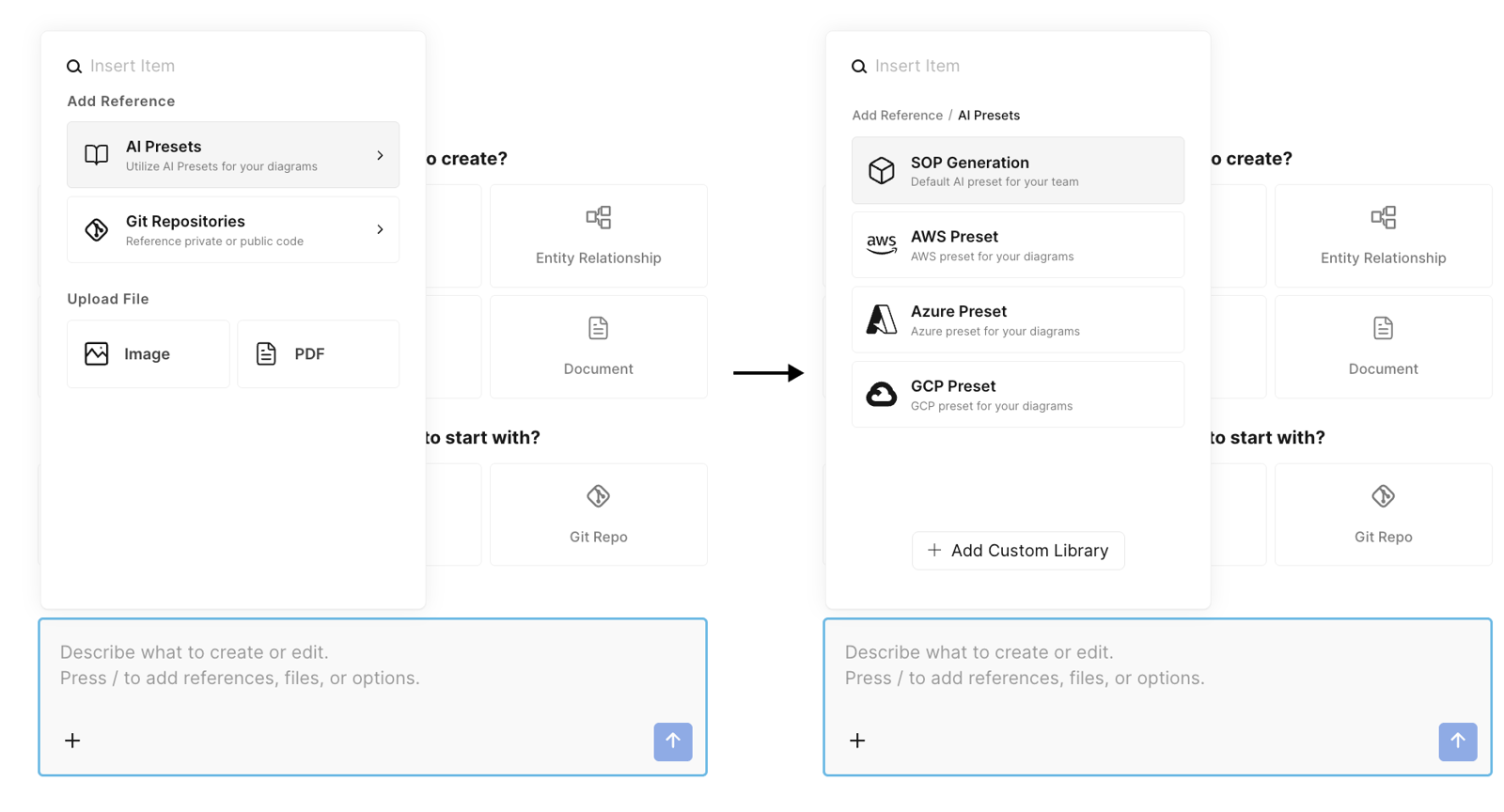
When you generate with a preset, Eraser determines whether a template applies to your request. You can also explicitly choose a specific template for the generation. The AI then produces output that conforms to the selected template’s structure, so results stay consistent with your standard. If no template is selected (or none is published), the AI generates without a scaffold.
In the API and MCP
With the MCP server or the API, pass a presetId and name the template in your prompt – Eraser picks it from the preset. To force a specific template, also pass its templateId; it must belong to that preset. Responses include a template field showing which template was applied.
Citations
When a generation uses this template, Eraser cites it as a source, making it clear which scaffold the work was built from.