AI presets
AI presets let your team shape how Eraser’s AI generates diagrams and documents. A preset is a reusable bundle of rules, templates, and references that you attach to a generation request. Instead of re-explaining your conventions every time, you capture them once in a preset and the AI applies them automatically.
A preset answers three questions for the AI:
- Rules – what must always be true? (styling, layout, branding, policies)
- Templates – what should the output be filled into? (a starting structure to complete)
- References – what should the AI read for context? (existing patterns, tech stack, guidelines)
Presets are scoped to a team, so everyone on the team generates output that looks and reads consistently.
Who can manage presets
| Action | Required role |
|---|---|
| View and use presets | Any team member |
| Create, edit, rename, delete a preset | Team admin |
| Add or remove rules, templates, references | Team admin |
| Set or unset the default preset | Team admin |
Managing presets
You manage presets from your team’s AI settings. Each preset has three tabs – Rules, Templates, and References – for managing the items inside it.
Create a preset
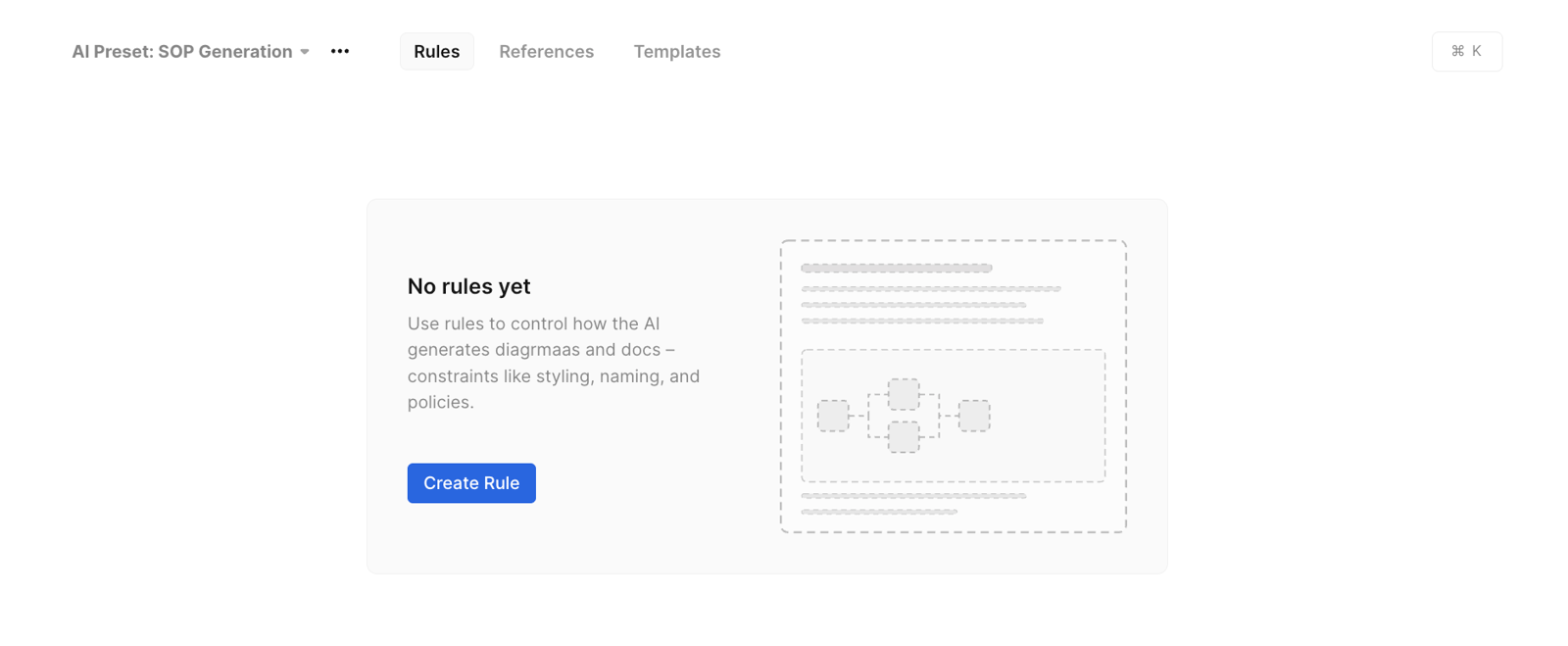
- Open your team’s AI presets.
- Create a new preset and give it a name and an optional description. The description helps teammates understand when to use it.
- Add rules, templates, and references using the tabs (see the dedicated pages for each).
Delete a preset
Deleting a preset removes it for the whole team. Templates and references are backed by regular Eraser files, so deleting the preset does not delete those files – it only unlinks them from the preset.
Setting a default preset
A team can mark one preset as the default. When it is set, that preset is automatically applied to any new AI chat session. Users can still unapply the preset from a chat session. Setting a new default automatically unsets the previous one.
Using a preset in generation
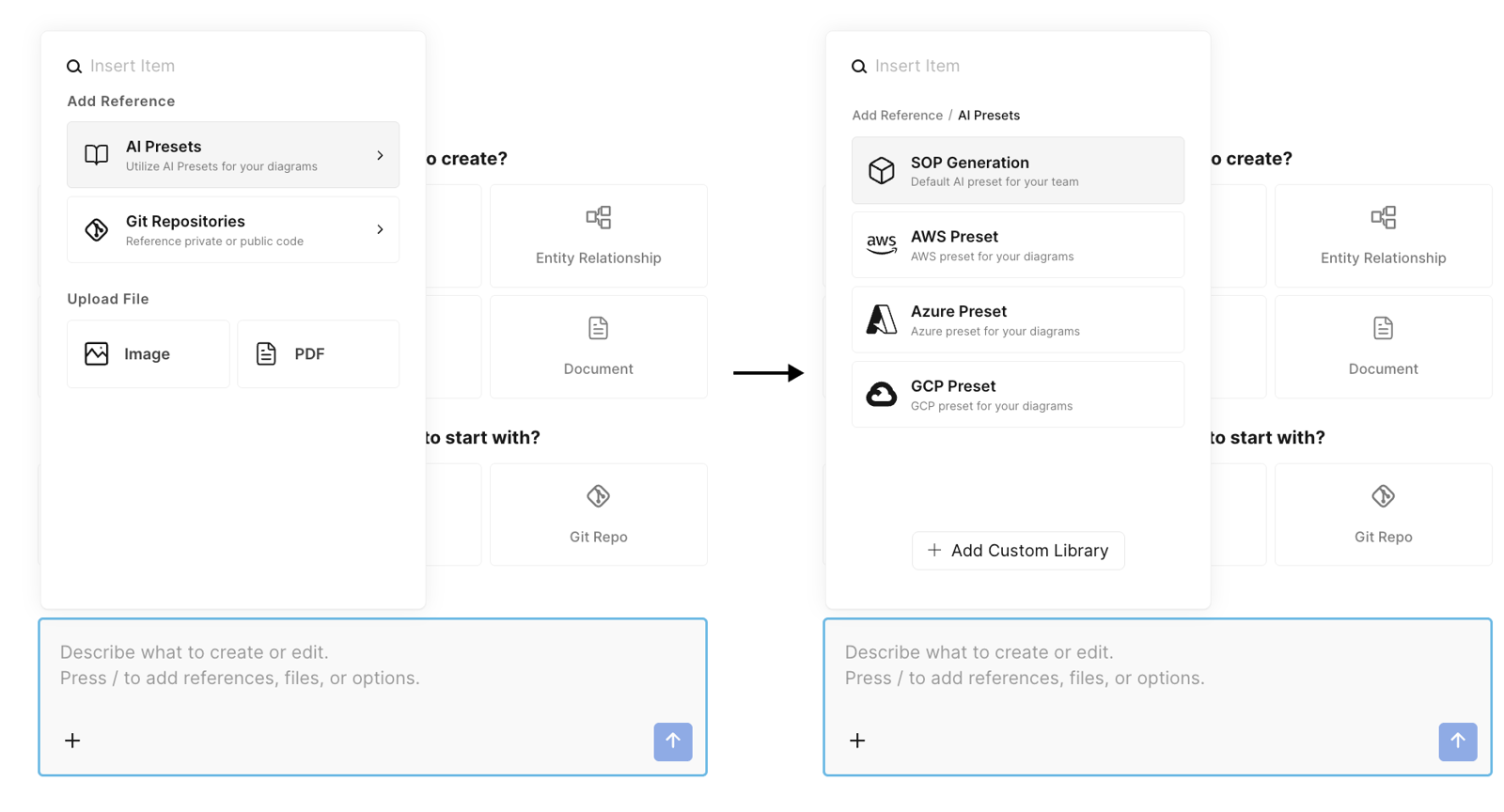
When you generate a diagram or document with AI, you choose which preset applies:
- In the AI sidebar, click on the + button
- Select AI presets
- Select the preset that you’d like to apply
When a preset is applied, Eraser intelligently selects the most relevant references and template for your specific request, then applies all of the preset’s rules as generation guidelines. See the individual pages for details:
Using a preset in the API and MCP
Pass the preset’s ID as presetId to the MCP AI tools (create_diagram, update_diagram, create_document, update_document) or the /api/render/prompt endpoint. Omit it to use the team’s default preset, or pass null for none. To use a template, name it in your prompt – see Templates.
To find the ID, use the list_presets MCP tool, or select the preset on the AI presets page and copy the presetId from the URL.