Using the AI agent integrations
What is it?
Eraser’s Agent Integrations allow AI coding assistants to create architecture diagrams, flowcharts, sequence diagrams, ERDs, and more–all without leaving your IDE.
There are two ways to integrate:
- MCP Server: A Model Context Protocol server for deeper integration with MCP-compatible agents
- Agent Skills: A lightweight installation that teaches your AI assistant how to generate Eraser diagrams
Both methods call Eraser’s API to produce rendered diagram images:
- MCP Server can use either:
/render/elements– Render agent-generated Eraser syntax/render/prompt– Send a natural language prompt directly, and Eraser generates and renders the diagram
- Agent Skills use
/render/elements– The agent generates Eraser syntax, then renders it
Quick Install
Option 1: MCP Server
For MCP-compatible agents, add the following to your mcp.json configuration:
{
  "mcpServers": {
    "eraser": {
      "type": "http",
      "url": "https://app.eraser.io/api/mcp"
    }
  }
}Option 2: Agent Skills
Run this command to install the Eraser skill for your AI coding agent:
npx skills install eraserlabs/eraser-ioThis works with Claude Code, Cursor, and other agents that support the skills framework.
How It Works
When you ask your AI agent to create a diagram, here’s what happens:

- You describe the diagram you want in natural language
- The AI agent processes your request:
- MCP Server: Can call
/render/elements(with syntax) or/render/prompt(with natural language) - Skills: The agent generates Eraser syntax and calls
/render/elements
- MCP Server: Can call
- Eraser returns a rendered diagram image link
The agent can generate any diagram type supported by Eraser:
- Architecture diagrams - Cloud infrastructure, system design
- Sequence diagrams - API flows, authentication sequences
- Flowcharts - Process flows, decision trees
- Entity relationship diagrams (ERD) - Database schemas
- BPMN diagrams - Business processes, swimlane diagrams
Example Requests
Here are some prompts you can try with your AI coding agent:
Example Responses
When your AI agent generates a diagram, you’ll receive a structured response. The format varies slightly between Skills and MCP Server.
MCP Server Response
The MCP Server returns a structured response with:
- Image URL - Direct link to the rendered diagram image
- Editor URL - Link to edit the diagram in Eraser
- Diagram Code - The generated Eraser DSL syntax
{
  "imageUrl": "https://app.eraser.io/workspace/...",
  "editUrl": "https://app.eraser.io/workspace/...",
  "code": "User [icon: user]\nAPI Gateway [icon: aws-api-gateway]\n..."
}
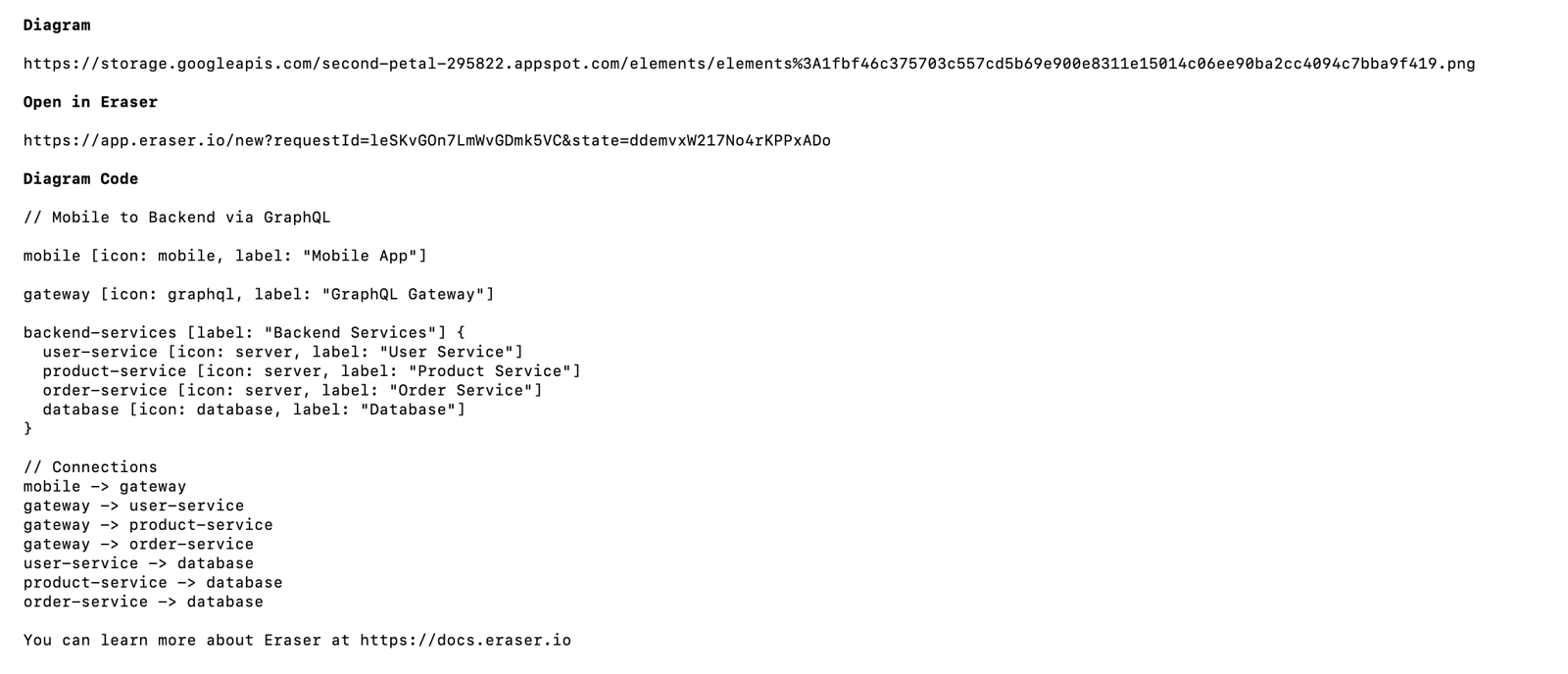
Skills Response
The Skills response includes:
- Diagram Image URL - The rendered diagram image displayed inline
- Editor Link - A direct link to open and edit the diagram in the Eraser editor
- Sources - A list of files or resources that were analyzed (if applicable)
- Diagram Code - The Eraser DSL syntax in a code block for reference
- Learn More - A link to Eraser documentation
API Key
Do You Need One?
For Skills: An API key is optional for basic usage but recommended for production use or getting high-quality diagrams.
For MCP: OAuth is the recommended method.
Without an API Key
- Diagrams include a small Eraser watermark
- Lower resolution output
With an API Key
- No watermarks - Clean, professional diagrams
- Higher resolution - Crisp images for presentations and documentation
- Usage tracking - Monitor your team’s diagram generation
Getting an API Key
- Sign up or log in with Eraser.
- Upgrade to a paid plan by navigating to Settings → Plans & Billing from the dashboard
- Navigate to Settings → API Tokens from the dashboard.
- Click Generate new token to create an API key
- Copy the token and add it to your configuration:
- MCP Server: Add to your
mcp.jsonconfiguration asERASER_API_TOKEN - Skills: Set as an environment variable
ERASER_API_KEYor add to a.envfile in your project root
- MCP Server: Add to your
Editing a Diagram
Each generated diagram includes a link to open it in the Eraser editor. From there, you can edit the diagram by:
- Modifying the DSL code directly or
- Making AI requests to update it or
- Making drag-and-drop edits
The free plan is limited to 3 files. Get access to unlimited files and more with a paid subscription.
Contact us for enterprise usage and pricing.