Teams
A team is a group of members that regularly work together and share access to Eraser files. Teams are an important concept in Eraser because all users and files in Eraser belong to a team, even if it is a single-member team.
Creating a team
A team is created during sign-up or on the first time the user navigates to the dashboard. During the team creation process you can configure:
- Team name
- Invited members
- Auto-join based on email domain
Team settings
The Team Settings page allows for configuring team settings.
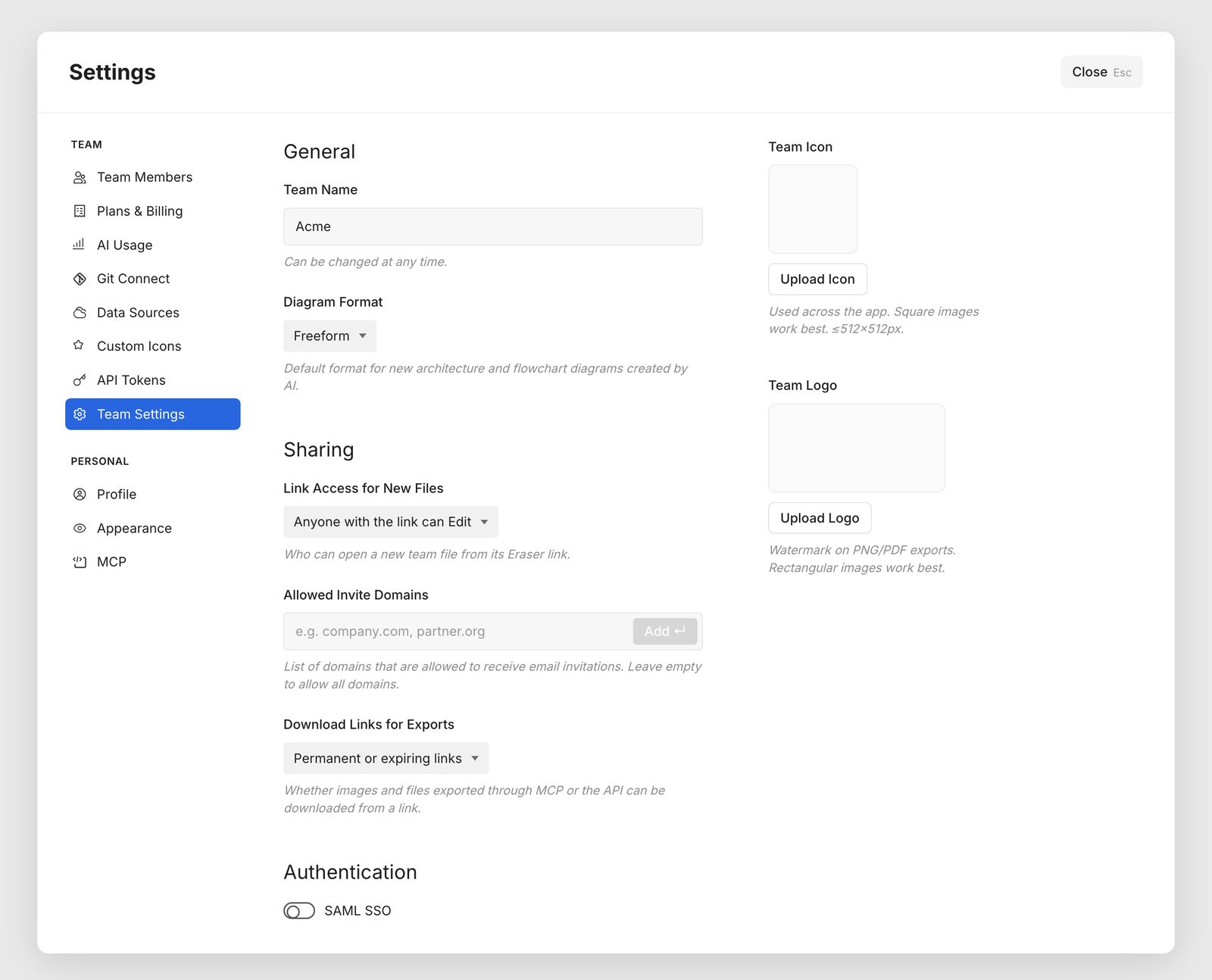
Team name
You can change your team’s name.
Diagram format
Team admins choose what AI creates when asked for an architecture diagram or a flowchart:
- Freeform (the default) – a freeform diagram
- Code (DSL) – diagram as code, with automatic layout
Link access for new files
Who can open a new team file from its Eraser link. Private files aren’t affected. It can be one of:
- No link access (Paid plan required)
- Anyone with the link can edit
- Publicly viewable
- Publicly editable (Paid plan required)
Download links for exports
When an AI agent or script exports a diagram through the MCP server or the API, Eraser can return the file itself or a download link to it. This setting controls which links are allowed.
- Permanent or expiring links (default): A download link works for whoever has it, forever or until it expires.
- Expiring links only: Download links expire after 1 hour by default, or later if a request asks.
- No links: No download links. Exports come back as the file itself.
Delete team
You can delete the team and all the files that belong to the team. This option is visible to the team admin only if:
- There are no other members on your team AND
- Your team does not have an active paid subscription
Multiple teams
A user can belong to multiple teams in Eraser.
Switching teams
You can switch between teams by using the team switcher dropdown on the dashboard.
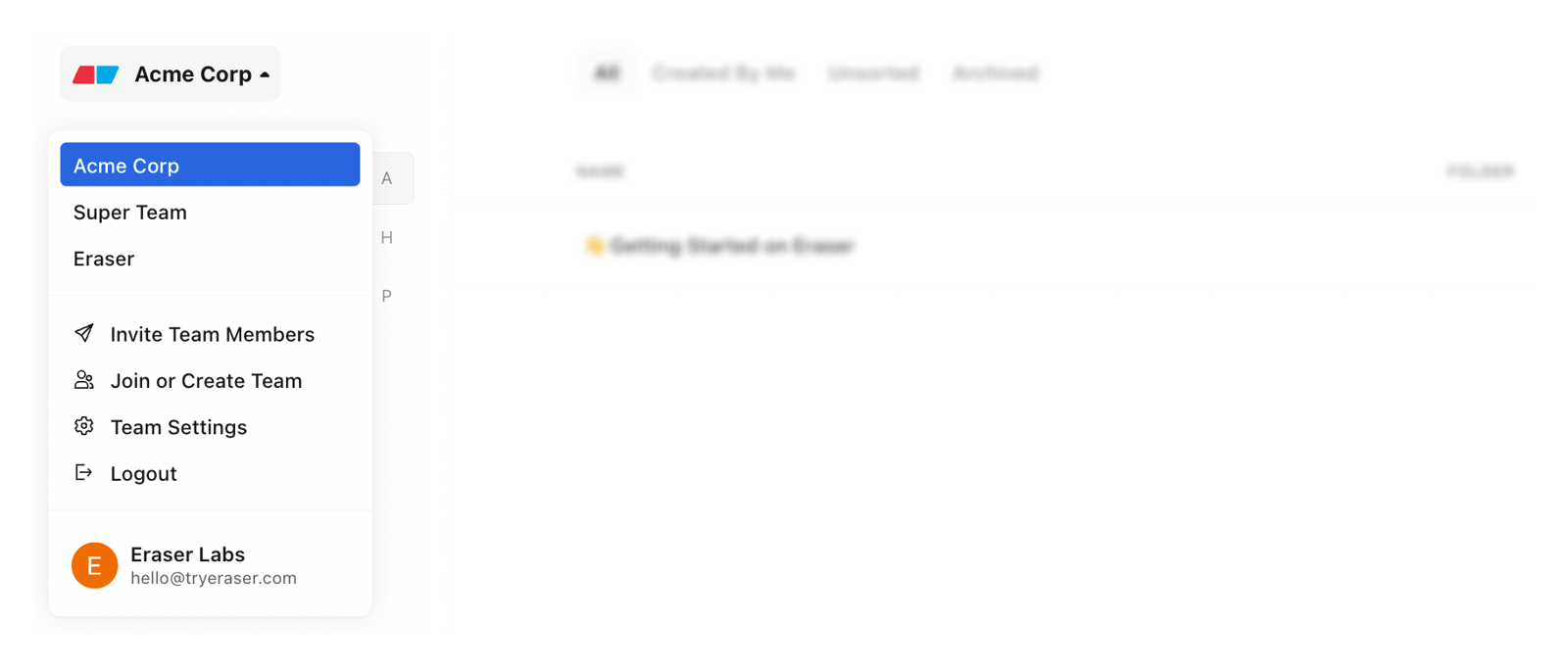
Join or create a new team
On the dashboard, click on the team switcher dropdown and select “Join or Create team”
- Join team: Join any teams you are eligible to auto-join based on your email domain.
- Create team: Create a new team