Creating a map
Click New file on the dashboard (^ N) and choose Map.
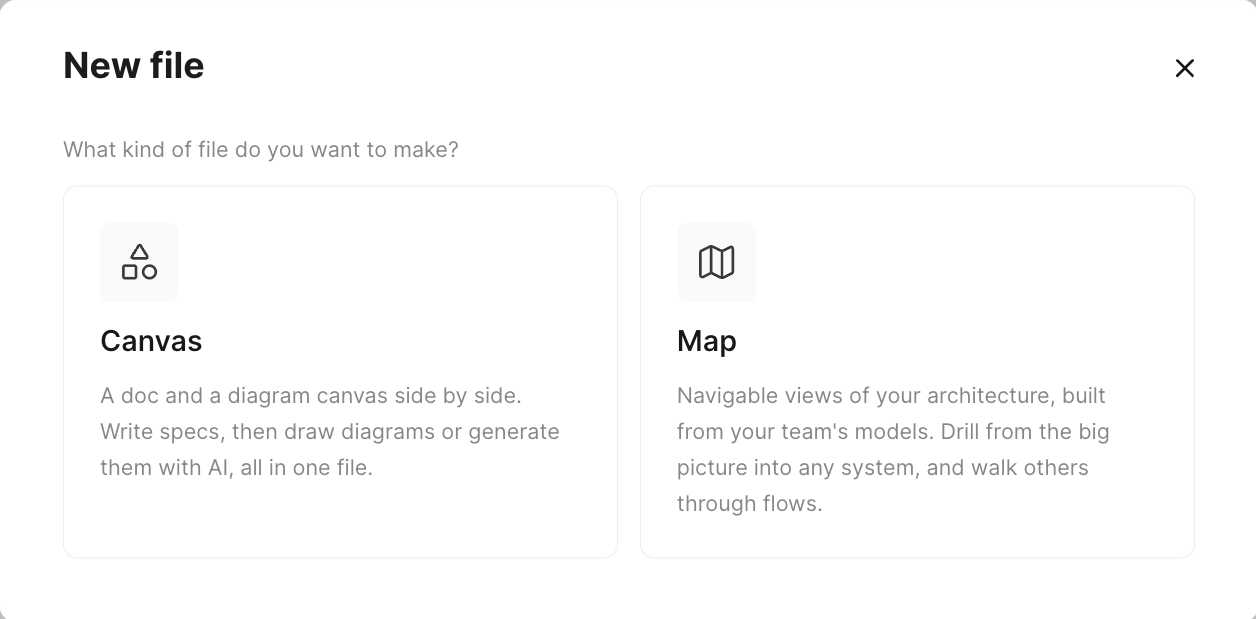
Starting an empty map
A new map opens Eraser AI next to the Start your map cards. Describe the map you want, or pick a card:
- A model – adds it to the map and fills in the prompt to map it.
- Add a data source – when your team has no models yet. See Data sources.
- See examples – on the Free plan.
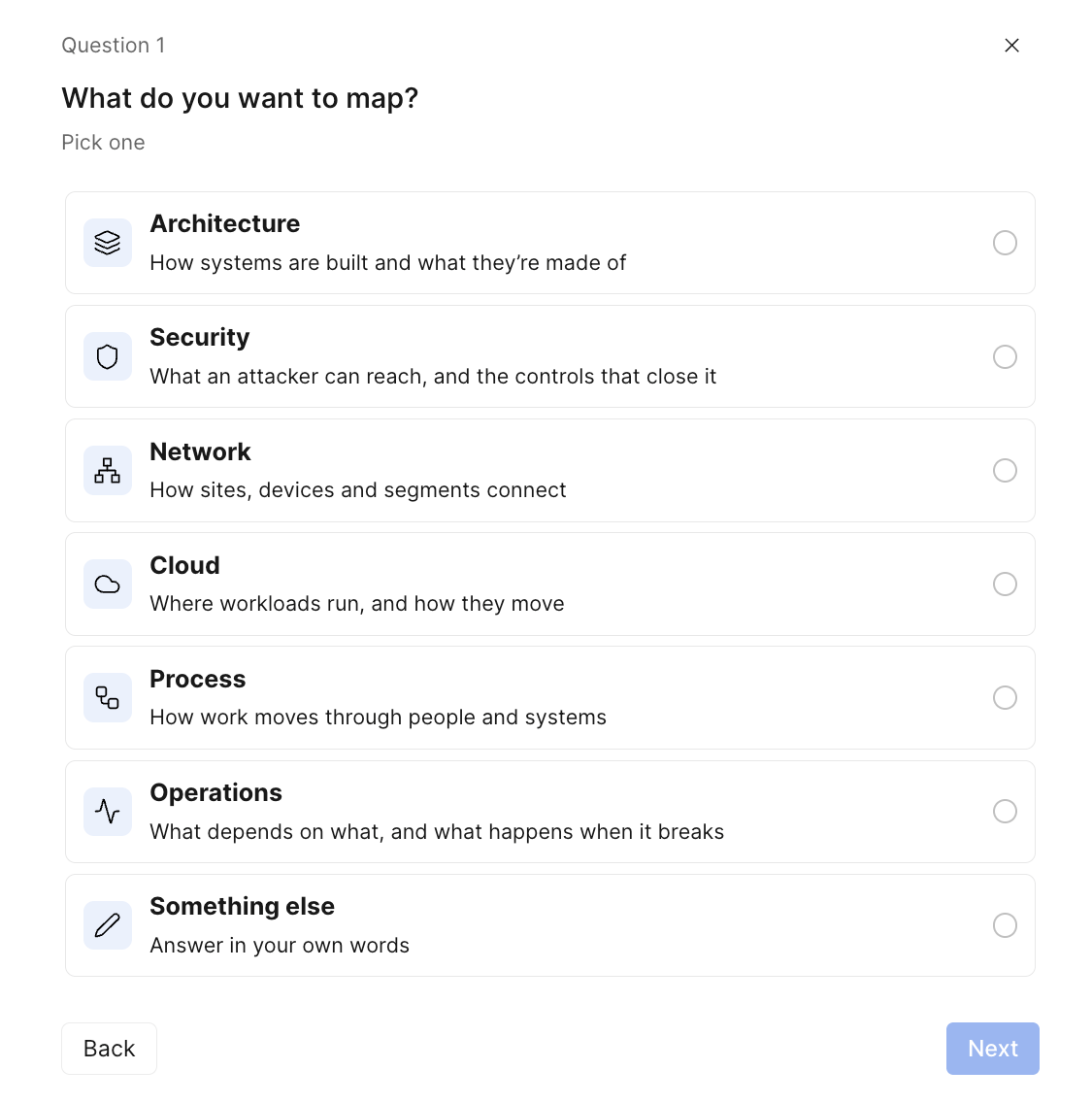
- Start from scratch – a few questions, below.
Start from scratch
Eraser AI asks a few questions, starting with What do you want to map? Then it asks what to build it from: pasted text, an uploaded file, your team’s models, a new data source, or a description.
When it knows enough, Eraser AI plans the map. Skip passes on a question, and Quit (Esc) leaves your answers in the Eraser AI prompt box.
The plan
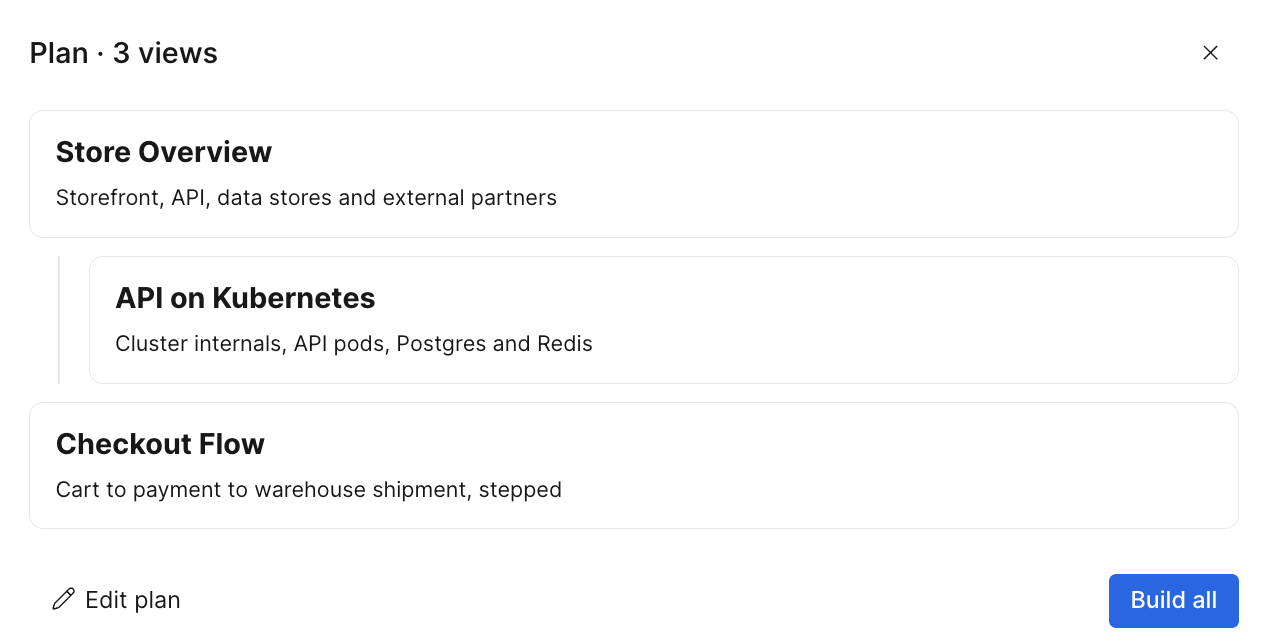
Eraser AI proposes the map as a plan, with a card for each view. Change it with Edit plan or in the chat, then click Build all. A plan you haven’t built waits above the prompt box, and a built card opens its view.
AI credits
Eraser AI uses one AI credit for each view a request draws or changes, and one for a request that changes only the map. Plans and questions are free. It won’t start without credits, and it stops building when they run out.
Undoing an AI change
Before each request that changes the map, Eraser AI saves a version labeled Before Eraser AI. Restore it from version history.