Connecting ServiceNow
Connect a ServiceNow instance so Eraser can draw architecture diagrams from the configuration items (CIs) and relationships in your CMDB. Eraser reads the instance as an integration user you create yourself, and that user holds only read roles.
Everything below starts from Settings → Data Sources in Eraser – keep that tab open, since you’ll return to it to copy values into ServiceNow.
Quick overview
- Enter your instance (how-to)
- Create the integration user (how-to)
- Configure OIDC (how-to)
- Connect the instance (how-to)
What Eraser gets access to
The integration user holds three roles: sn_cmdb_user, service_viewer, and snc_read_only. Together they allow reading configuration items, their relationships, and the application services they belong to – nothing else.
No password or API key is exchanged. Eraser signs in with a short-lived token, and your instance accepts it only because of the OIDC provider you set up for your team in step 3. A token issued for any other Eraser team is refused.
Eraser checks the user’s roles before it accepts the connection and before every scan, and refuses anything broader: a user holding any other role is rejected.
1. Enter your instance
Open Settings → Data Sources and pick ServiceNow – from the list of data sources, or from Add connection once one is connected. Enter your instance’s hostname, such as pulsequeue.service-now.com. The buttons in the next two steps open pages on that instance.
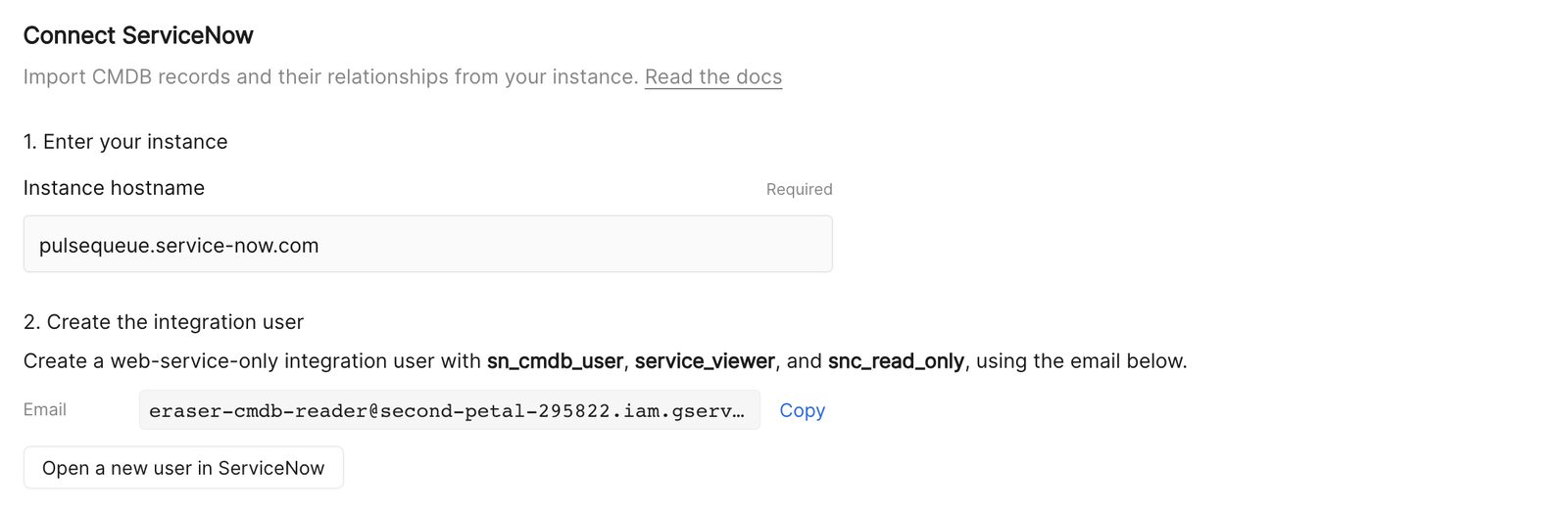
2. Create the integration user
Choose Open a new user in ServiceNow and create a user with the Email Eraser shows and Web service access only ticked. The form usually opens with both already filled in. Choose Submit.
Open the new user and add three roles on its Roles tab: sn_cmdb_user, service_viewer, and snc_read_only.
3. Configure OIDC
Eraser gives you the audience your instance should accept:

Choose Open Application Registry in ServiceNow, then New and Configure an OIDC provider to verify ID tokens. Set Client ID to the Audience from Eraser.
For its OIDC provider configuration, use the metadata URL https://accounts.google.com/.well-known/openid-configuration, map the email claim to the user’s Email field, and turn off JTI verification – Eraser’s tokens don’t carry a JTI claim.
4. Connect the instance
Back in Eraser, you can add a Filter: a ServiceNow encoded query that limits which CIs are imported, such as sys_class_name=cmdb_ci_server. Leave it empty to import every CI the user can read. Retired CIs are always skipped.
Choose Verify and connect, and Eraser runs its first scan.
After connecting
Each connection appears in Settings → Data Sources, showing the instance and when it last synced.
- Rescan reads the CMDB again. There is no scheduled background scan – Eraser reads your instance when you ask it to.
- Active lets Eraser scan the instance. Inactive stops scanning; its model keeps the last scan.
- Reconnect checks the setup again after you fix it in ServiceNow, keeping the connection’s history.
- Remove from Eraser disconnects and forgets the instance.
Removing a connection does not change anything in ServiceNow. To revoke access completely, also deactivate the integration user.
Anyone on the team can use the connection’s model in AI chat to generate diagrams and documents – see Cloud diagrams.
Troubleshooting
| What Eraser says | What it means |
|---|---|
| Use the instance hostname ending in .service-now.com | Enter the instance’s own hostname, such as pulsequeue.service-now.com. |
| Authentication check failed (HTTP 401) | The instance refused Eraser’s token. Check the OIDC provider from step 3: the Client ID, the email to Email mapping, and that JTI verification is off. |
| Map the scanner email to exactly one active, web-service-only integration user | No user has the email from step 2, more than one does, or the user is inactive or not web-service-only. |
| ServiceNow accepted a token for another audience | The OIDC provider accepts tokens meant for other teams. Set its Client ID to the Audience Eraser shows. |
| … denied access to sys_user_has_role (HTTP 403) | The user can’t read its own role assignments. Allow it, as in step 2. |
| Cannot verify read-only access | The user holds a role beyond the three read roles, or is missing one of them. |