Data sources
Connect a data source and Eraser draws architecture diagrams from what you actually run, not from a description of what should be there. There are three steps to it.
1. Connect
Open Settings → Data Sources and choose what to connect.
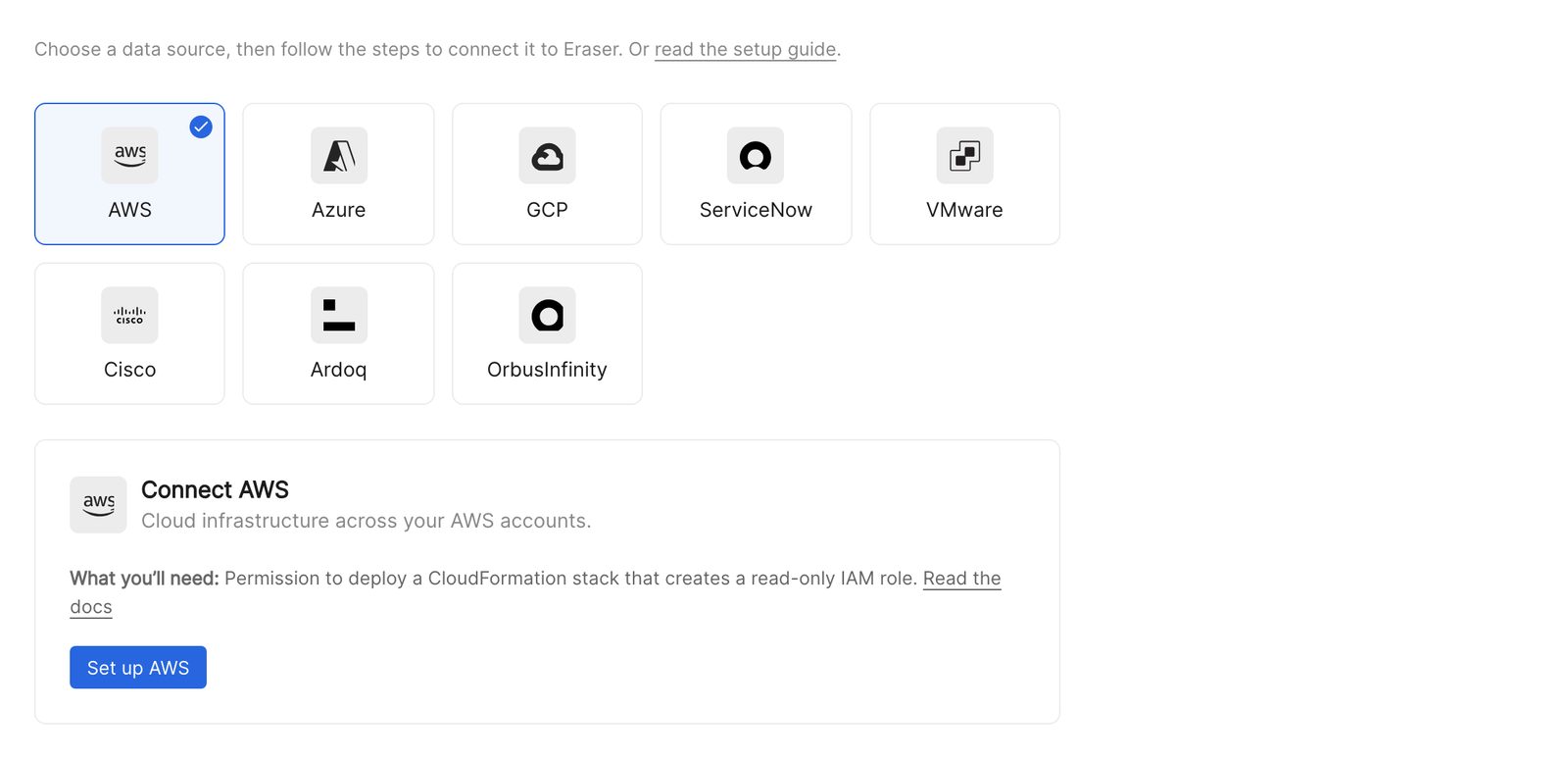
Each data source has its own walkthrough:
- Connecting AWS – an account, or an organization
- Connecting Azure – a subscription, or a whole tenant
- Connecting Google Cloud – a project, or an organization or folder
- Connecting ServiceNow – configuration items and their relationships
- Connecting VMware – a CSV export, or a live vCenter connection
- Connecting Cisco – Meraki Dashboard or Catalyst Center
- Connecting Ardoq – components and references from your workspaces
- Connecting OrbusInfinity – objects and relationships from your tenant
- Uploading files – a JSON, CSV, Excel, YAML or XML file
Every connection is read-only, and only team admins can add one. Once connected, it’s available to everyone on the team.
2. Scan
Eraser reads the data source and builds a model – an inventory of what it holds and how it connects. The first scan runs when you connect; after that, scans run on demand from Settings → Data Sources, and each one updates the model.
3. Diagram
Reference the data source’s model in AI chat and ask for what you want – a VPC, an application service, a site’s network, the whole estate. See Cloud diagrams. Or build a map from it.