Connecting Git repositories
Eraser supports connecting repositories from GitHub, GitLab, and Azure DevOps (Bitbucket coming soon). By connecting your Git repositories, you can:
- Use your codebase as context to automatically generate AI diagrams (e.g. “draw an architecture diagram of our
aws/staging/environment”) - Set up Eraserbot to monitor and keep important diagrams synced with your code
- Commit
.mdand.eraserdiagramfiles directly to your repository from Eraser
Codebase diagrams work with every supported platform. Eraserbot monitors are available for GitHub and GitLab, and committing files back to your repository (Git sync) is available for GitHub.
To get started, connect your organization from your preferred Git platform.
Connecting GitHub repositories
- Go to Settings > Git Connect
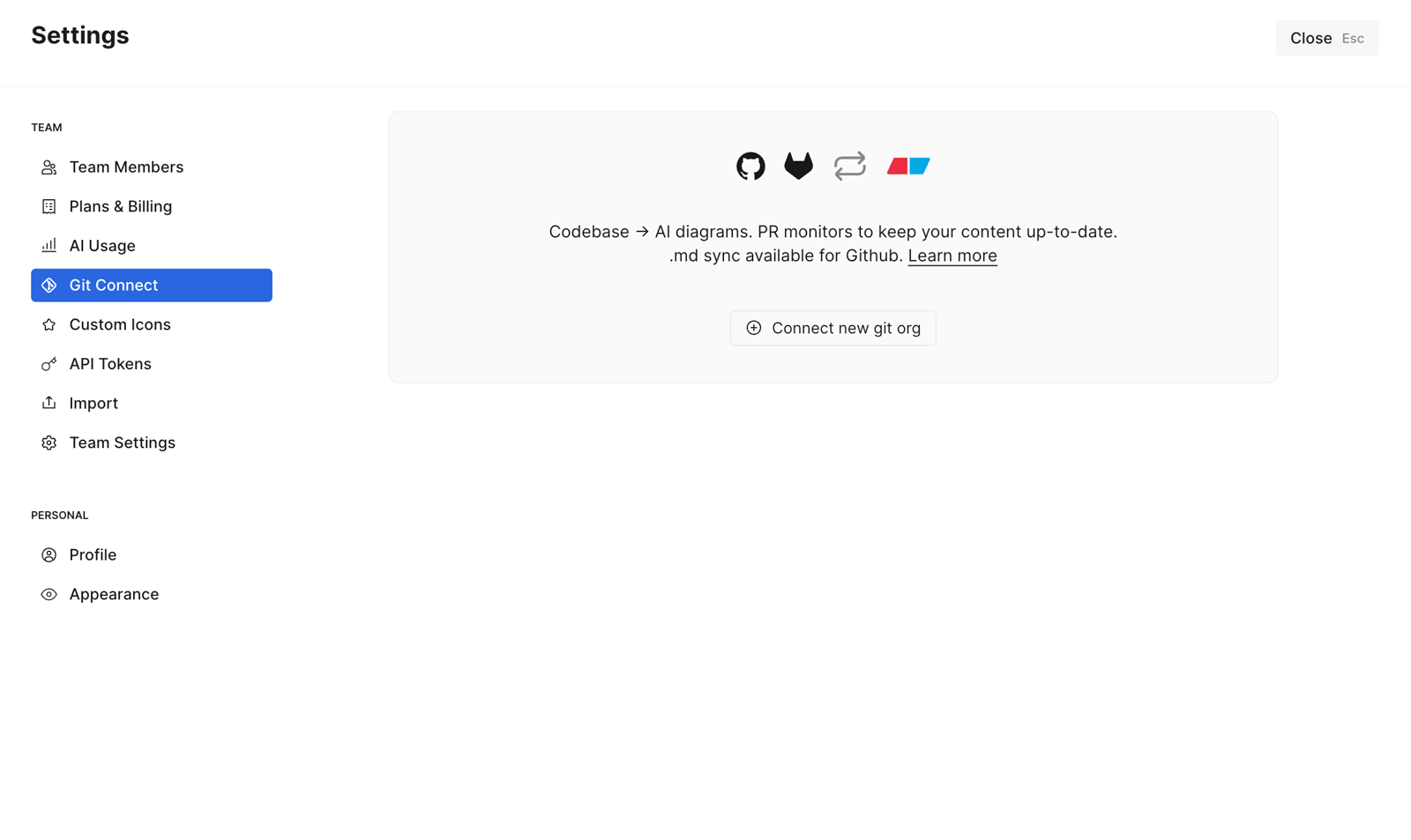
- Click Connect new git org > GitHub
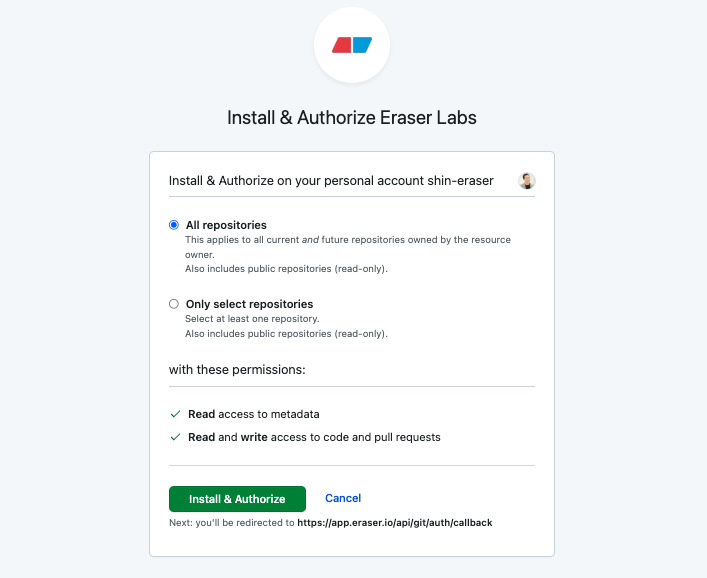
- Log in to your GitHub account, select the organization you’d like to connect, and install the Eraser GitHub App. Choose which repositories to authorize and click Install & Authorize.
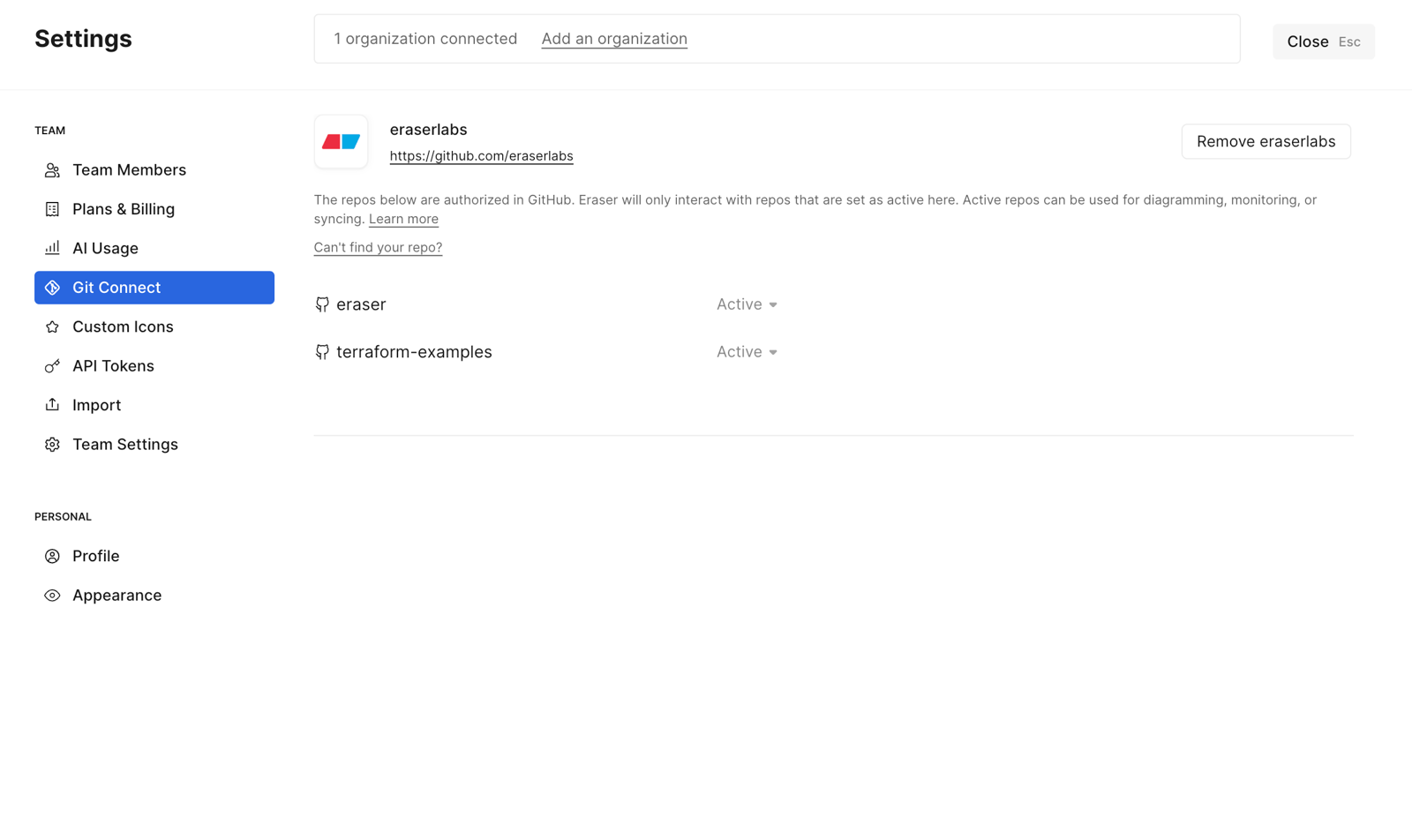
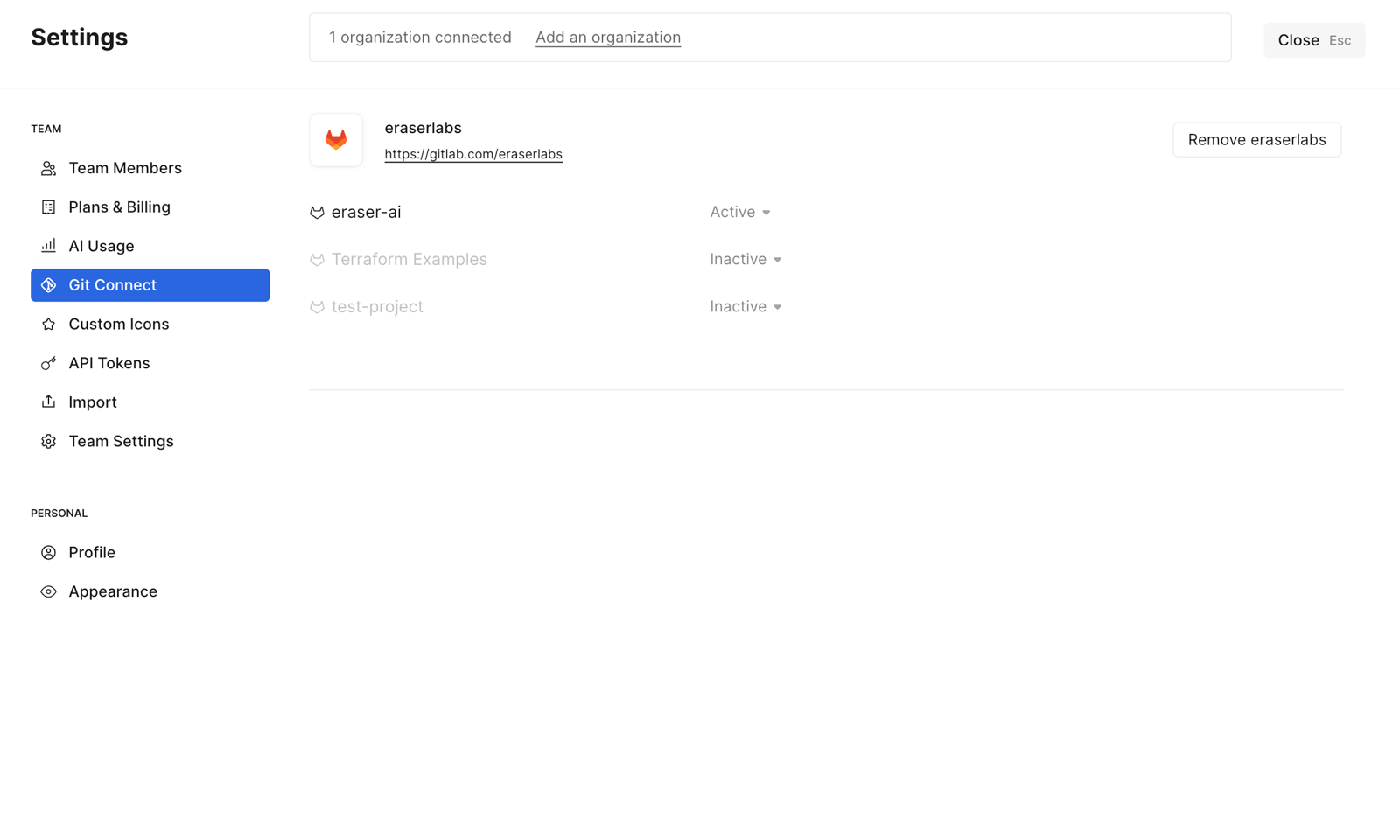
- Your authorized repositories will appear on the Git Connect page in Eraser.
Connecting GitLab repositories
- Go to Settings > Git Connect
- Click Connect new git org > GitLab
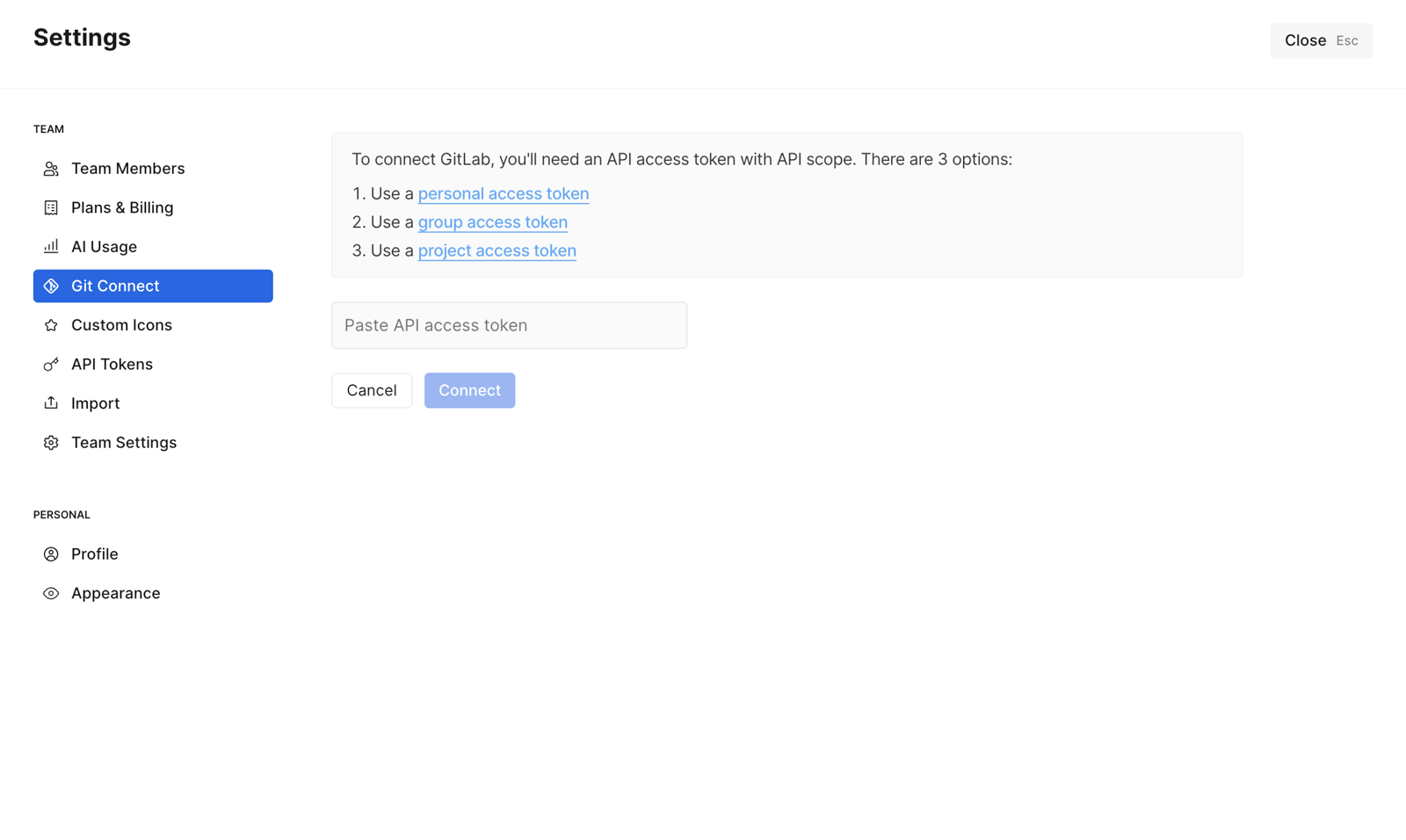
- Create a GitLab access token with
apiscope and paste it on this page. You can use a personal, group, or project access token.
- Select the GitLab projects you’d like to connect to Eraser.
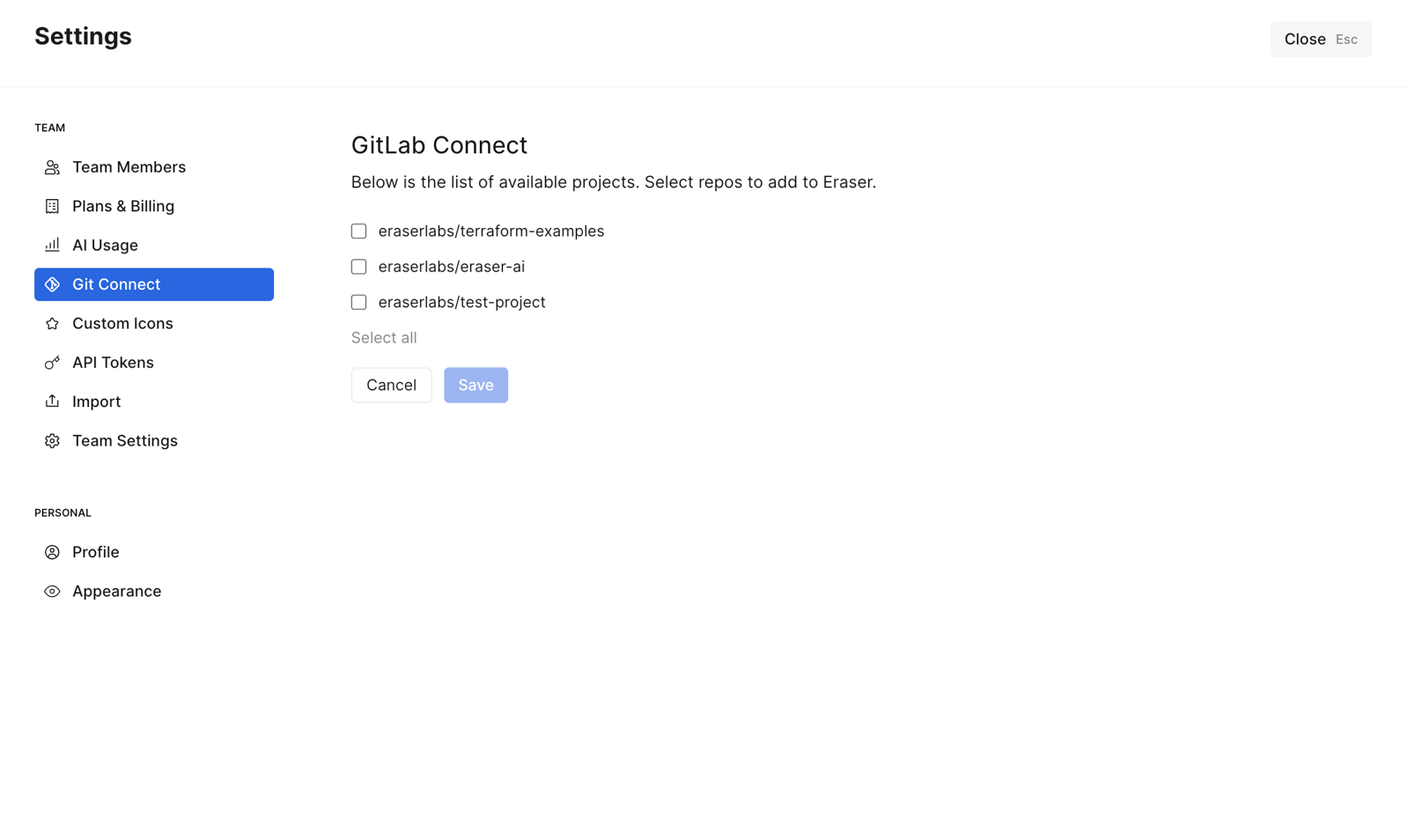
- Your connected projects will appear in the Git Connect page in Eraser.
Connecting Azure DevOps repositories
- Go to Settings > Git Connect
- Click Connect new git org > Azure DevOps
- Enter your Azure DevOps organization name — the part after
dev.azure.com/in your repository URLs. - Create an Azure DevOps personal access token with Code (Read) and Project and Team (Read) scopes, and paste it on this page. Scope the token to your organization rather than All accessible organizations — Microsoft is retiring multi-organization tokens on December 1, 2026.
- Select the repositories you’d like to connect to Eraser. Repositories are listed as
project/repository, because Azure DevOps repository names are only unique within a project. - Your connected repositories will appear on the Git Connect page in Eraser.
Because the token belongs to the user who created it, we recommend creating it under a service account so access doesn’t break when someone leaves the team. Note that Azure DevOps deactivates a token if its owner doesn’t sign in periodically, so the service account needs an occasional interactive sign-in.
Azure DevOps Server (on-premises)
To connect a self-hosted Azure DevOps Server instance, check Use an on-prem Azure DevOps Server and enter your server URL — including any path prefix, for example https://azuredevops.example.com/tfs — along with your project collection name, usually DefaultCollection. Your server must be reachable from Eraser.
What’s supported
Azure DevOps repositories can be used as context for codebase diagrams and AI chat. Git sync and Eraserbot monitors are not currently available for Azure DevOps.
Managing Git repositories
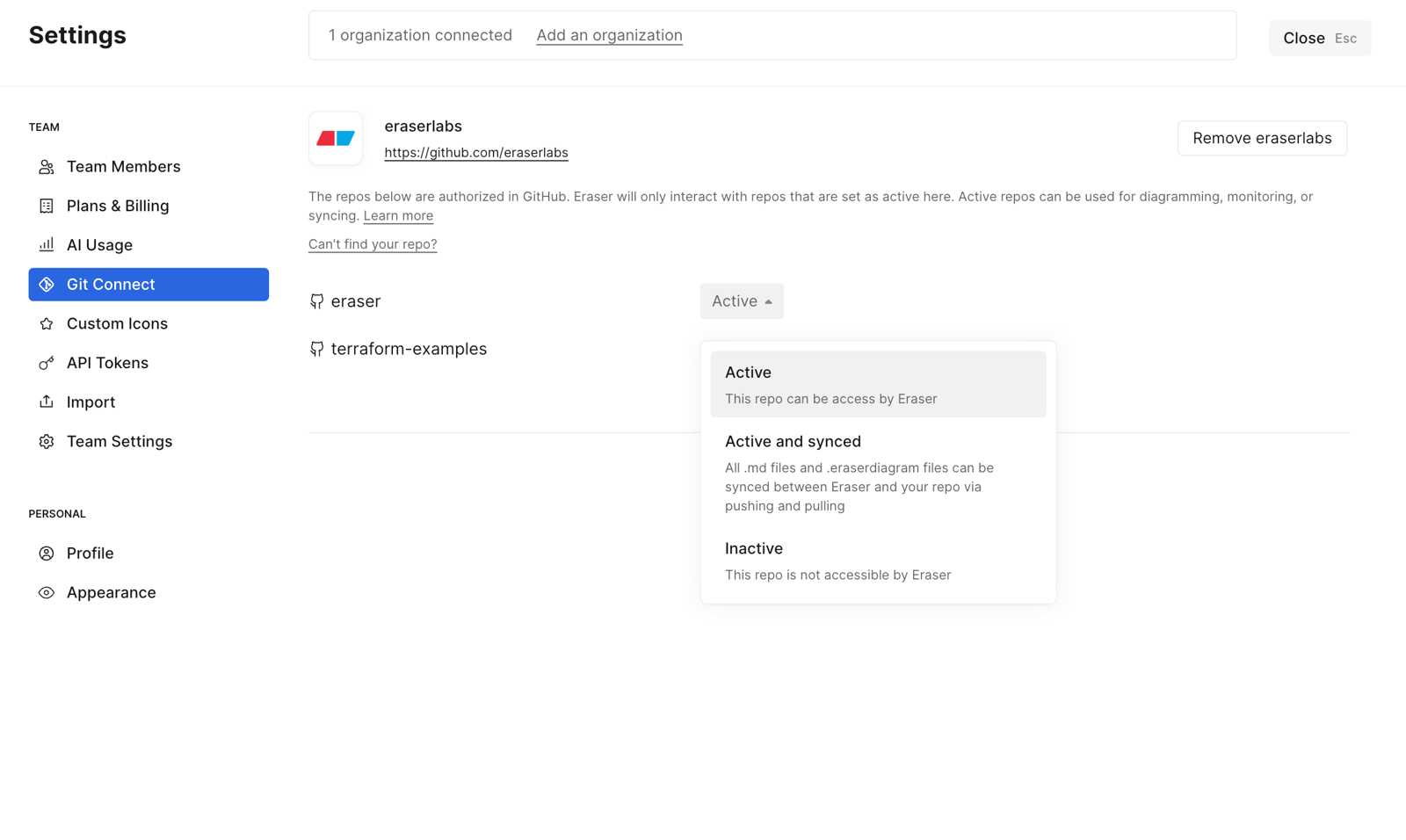
For each connected repository, you can configure one of the following access levels:
- Active: Eraser can access this repository to generate codebase diagrams and enable Eraserbot monitors.
- Active and synced (GitHub only): In addition to all the Active capabilities, Eraser can also commit
.mdfiles and.eraserdiagramfiles to the repository and pull them back in. - Inactive: Eraser has no access to this repository.
Organization-wide connections
Organization admins can connect a Git platform once for every team: in the Organization Dashboard, open Git Connect and click Connect new git org. Teams see the connection read-only, marked ORG.
To share a team’s existing connection, an organization admin opens Manage on it in that team’s Git Connect settings and chooses Move to organization. A synced organization repository has a home team, which receives its synced files.