Models
A model is the inventory Eraser builds from a data source – cloud resources, CMDB configuration items, virtual machines, network devices or architecture components – with their fields and connections. Browse it in Eraser, and use it in AI chat to create diagrams and documents from what you actually run.
How models are built
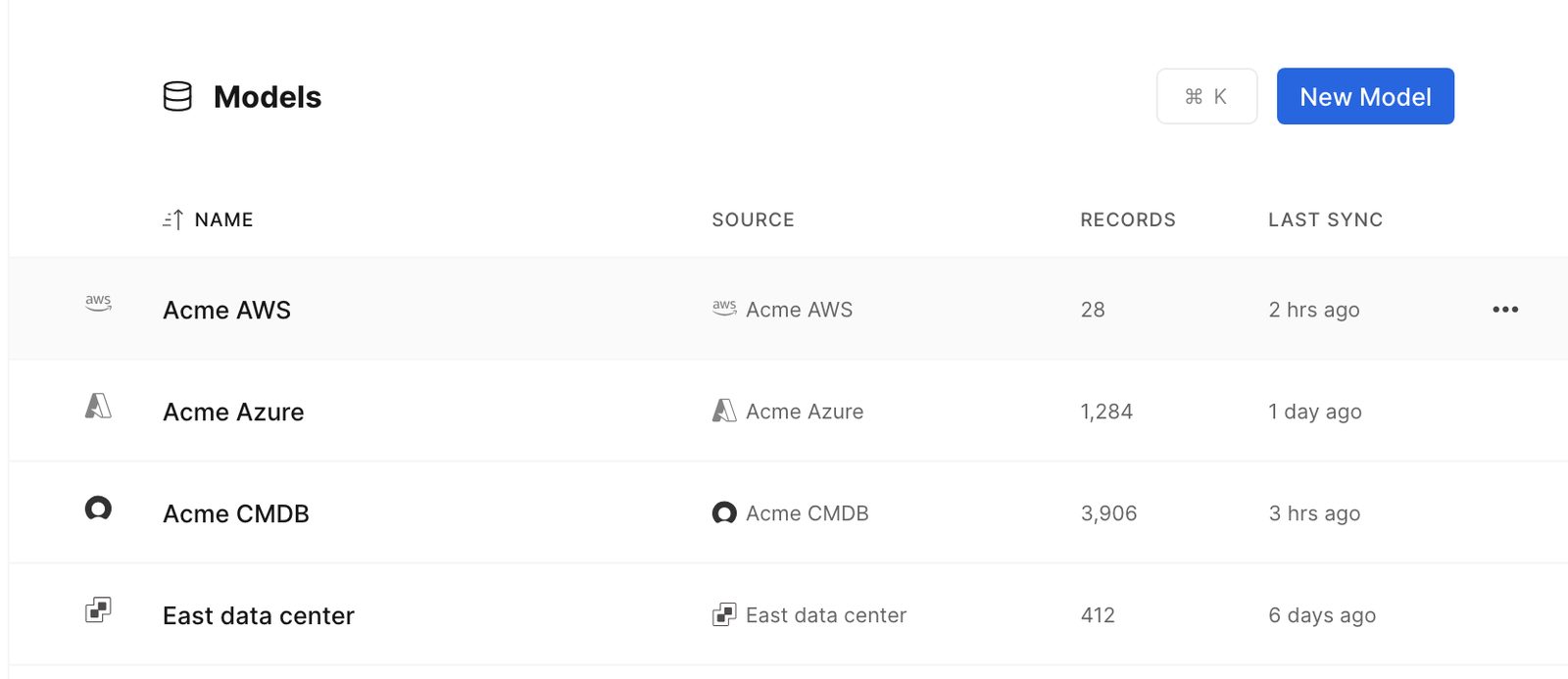
A data source’s first scan builds a model named after it, and every Rescan updates it. New Model opens Settings → Data Sources to connect one.
Browsing
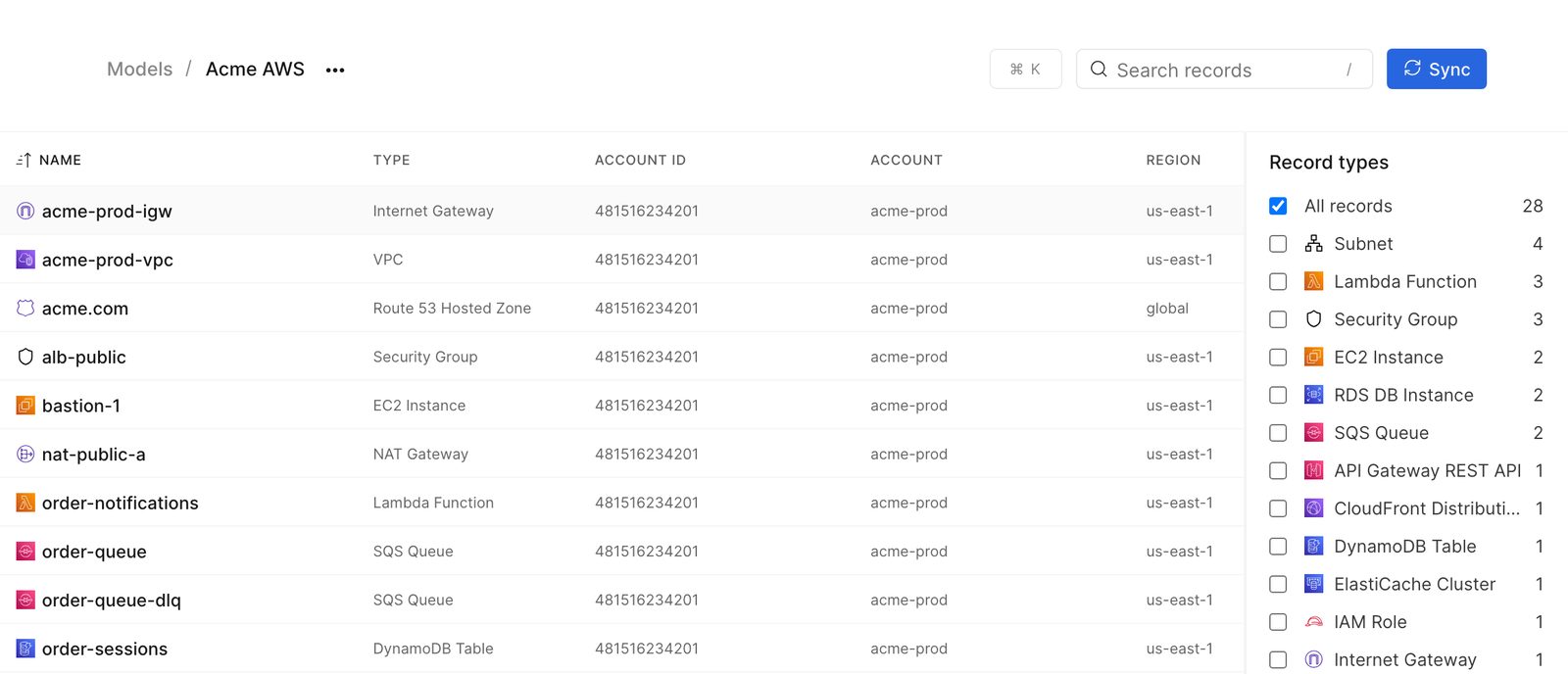
Open Models in the sidebar (or press M) and pick a model. Narrow it with Record types and Search records, and sort or filter from any column’s menu. Click a record to see its fields and connections.
Using a model in AI chat
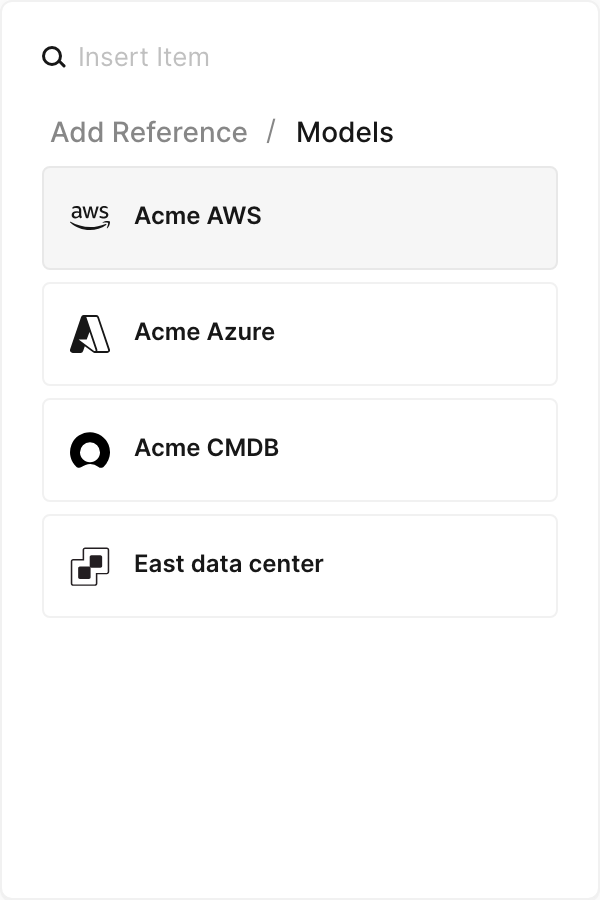
In an empty prompt, press /, choose Models, and pick one – up to five per request. AI chat uses it to create and edit diagrams and documents, such as cloud diagrams, dependency maps and inventories, and Verify checks diagrams against it. A model stays attached for the rest of the chat and costs no extra credits.
Organization models
Data sources connected in the Organization Dashboard build models that every team in the organization can use, read-only. They’re marked ORG.
Archiving and deleting
Archive removes a model from AI chat, and Restore brings it back. An archived model can be deleted with Permanently Delete – its data source stays connected, but rescanning won’t rebuild the model.
Team members (not guests) can archive and delete a team’s models. Only organization admins can change organization models.