Connecting Azure
Connect an Azure subscription, or every subscription in a tenant, so Eraser can draw architecture diagrams from the infrastructure you actually have deployed. Eraser reads your environment through an app registration you create yourself, and that app holds nothing but the built-in Reader role.
Everything below starts from Settings → Data Sources in Eraser – keep that tab open, since you’ll return to it to paste values from the Azure portal.
Quick overview
- Register the app (how-to)
- Add the federated credential (how-to)
- Grant the Reader role, on one subscription or on the whole tenant (how-to)
- Paste the IDs back into Eraser (how-to)
- Pick the subscriptions to import (how-to)
Only step 3 changes depending on how much you want Eraser to see. The rest is the same either way.
What Eraser gets access to
You create an app registration named Eraser Cloud Connector and assign it Azure’s built-in Reader role. Reader grants read access to resource configuration – it does not grant access to the contents of your storage accounts, databases, or key vaults.
No client secret is created – the app uses a federated credential instead, and Azure issues a short-lived token at scan time.
Eraser also checks the role assignment before it accepts the connection, and refuses anything broader: an app registration holding more than Reader is rejected.
Choose a scope
Open Settings → Data Sources and pick Azure – from the list of data sources, or from Add connection once one is connected.
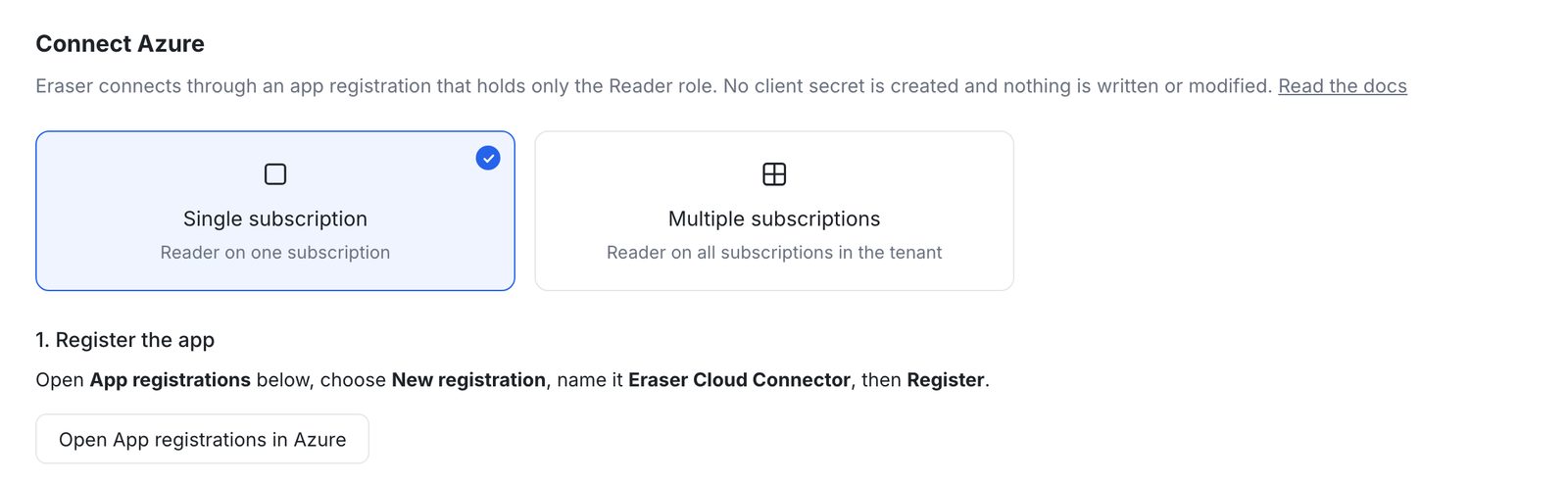
- Single subscription grants Reader on one subscription.
- Multiple subscriptions grants Reader once on the tenant root management group, which covers every subscription in the tenant – including ones created later.
1. Register the app
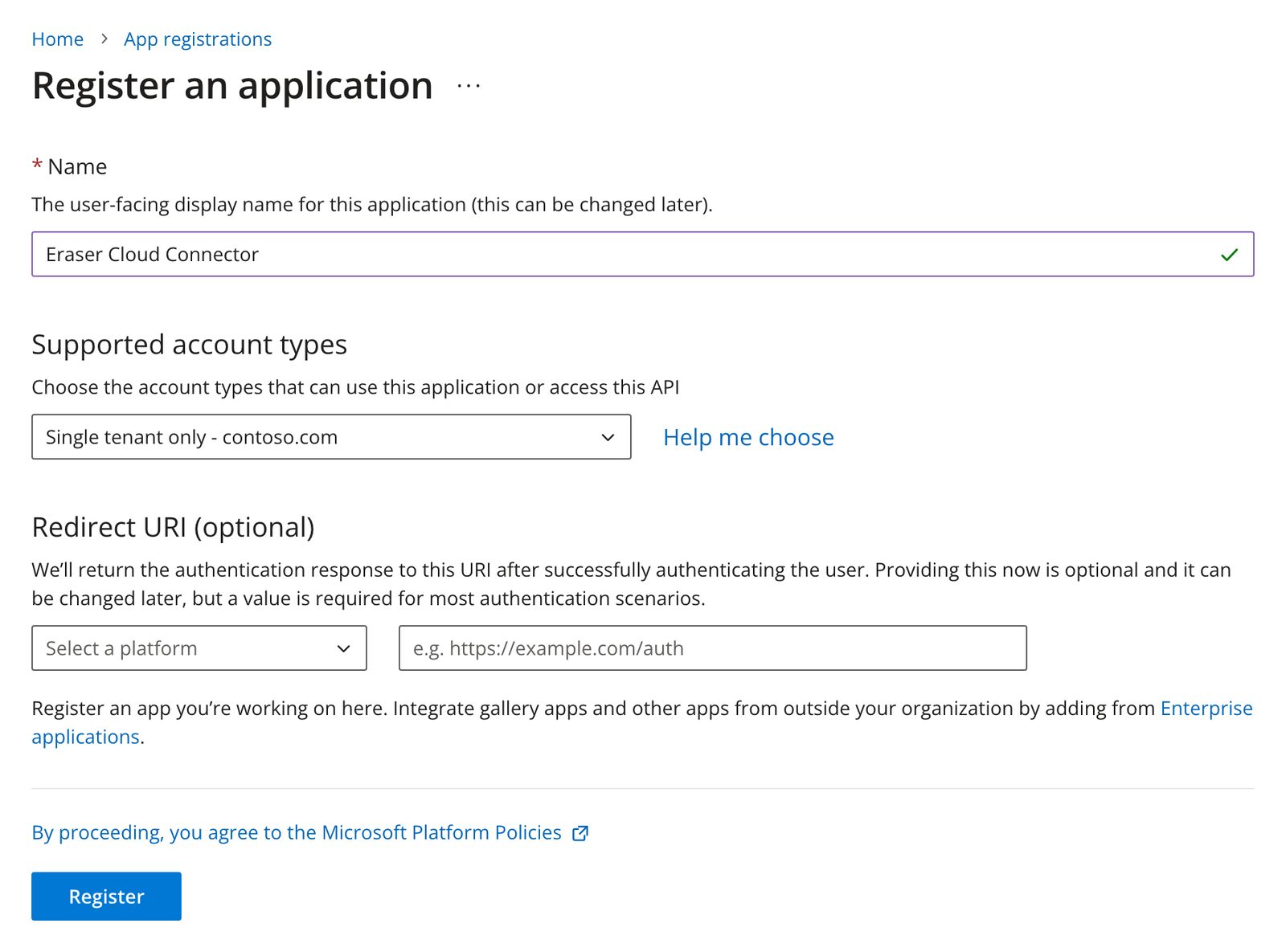
Choose Open App registrations in Azure, then New registration. Name it Eraser Cloud Connector and choose Register.
Keep Single tenant, and leave the Redirect URI empty.
2. Add the federated credential
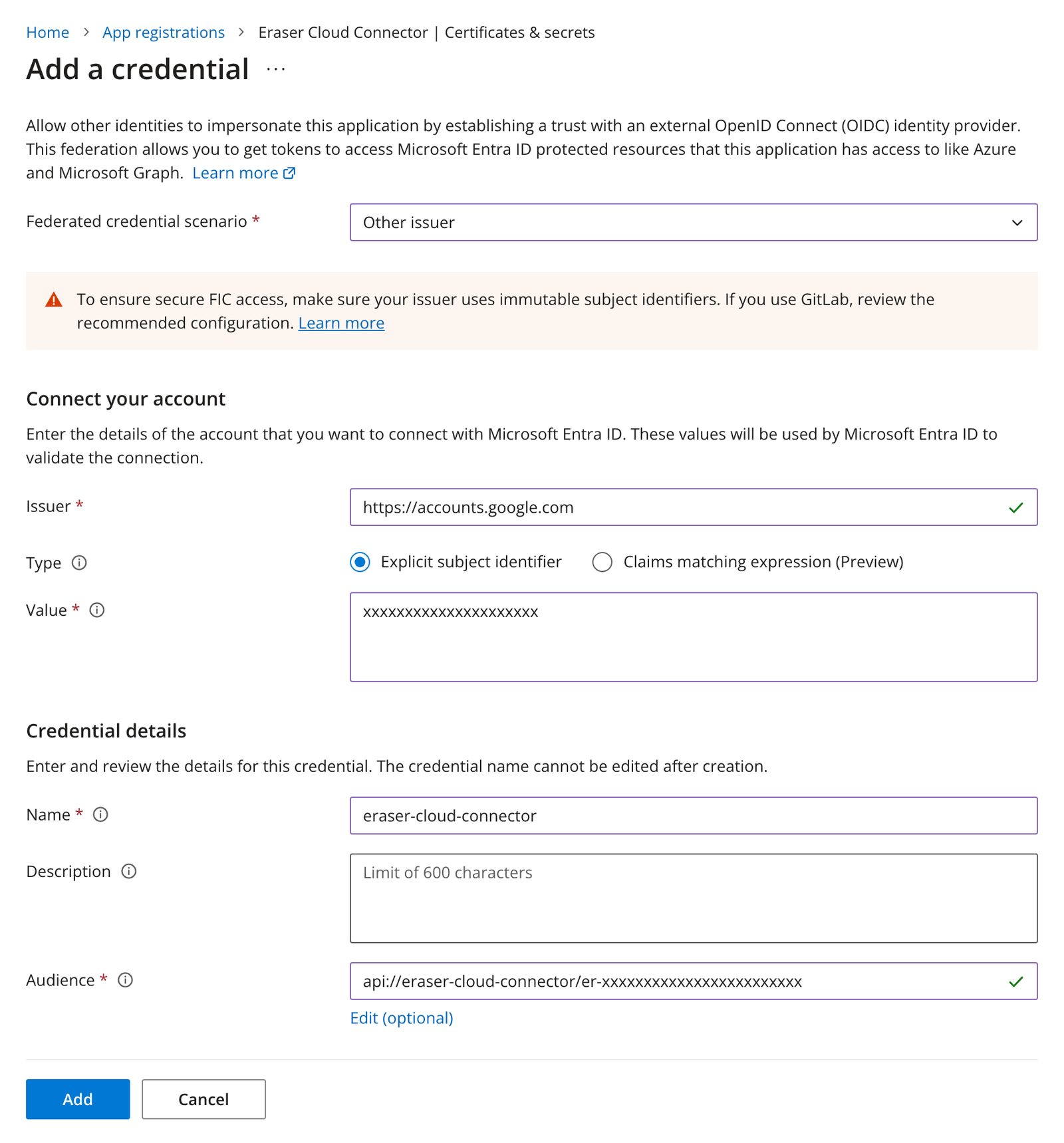
In the app you just created, open Manage → Certificates & secrets → Federated credentials → Add credential, and choose Other issuer as the scenario.
Eraser gives you four values to paste:
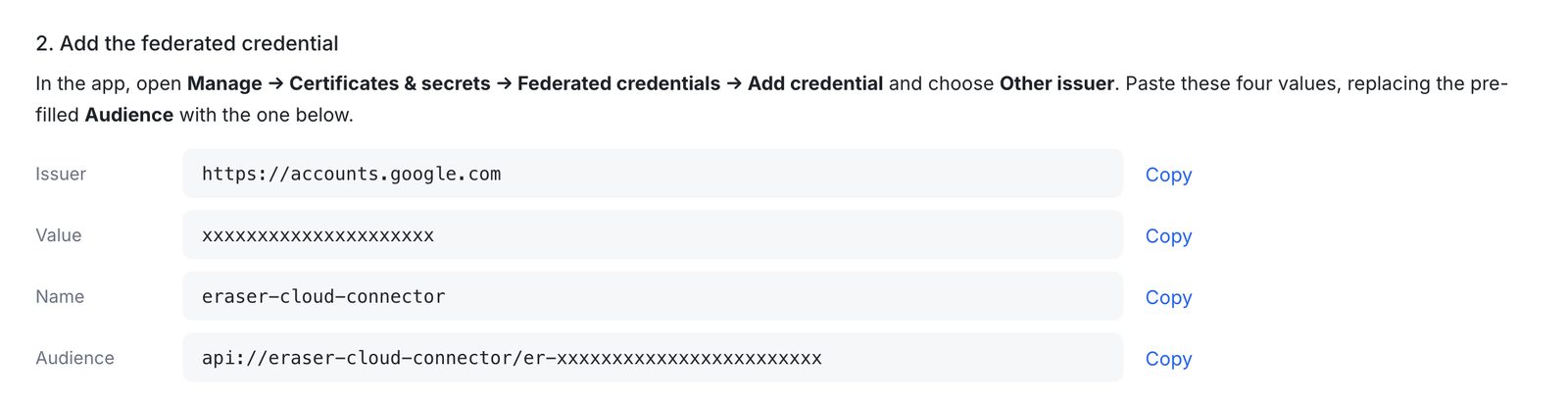
Leave Type as Explicit subject identifier, then choose Add.
3. Grant the Reader role
Follow whichever section matches the scope you picked.
On a single subscription
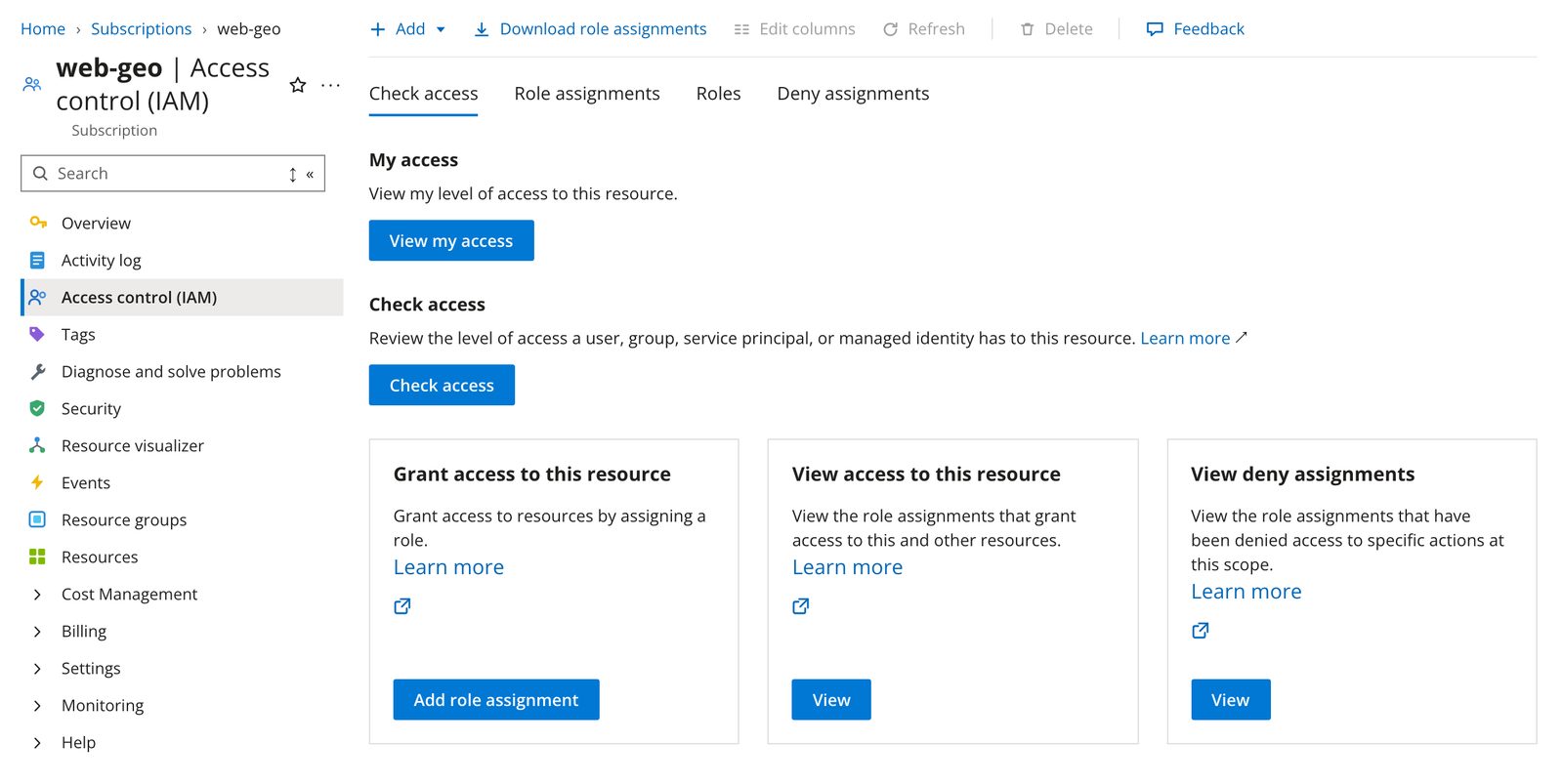
Choose Open Subscriptions in Azure and select the subscription Eraser may read. Open Access control (IAM) → Add → Add role assignment.
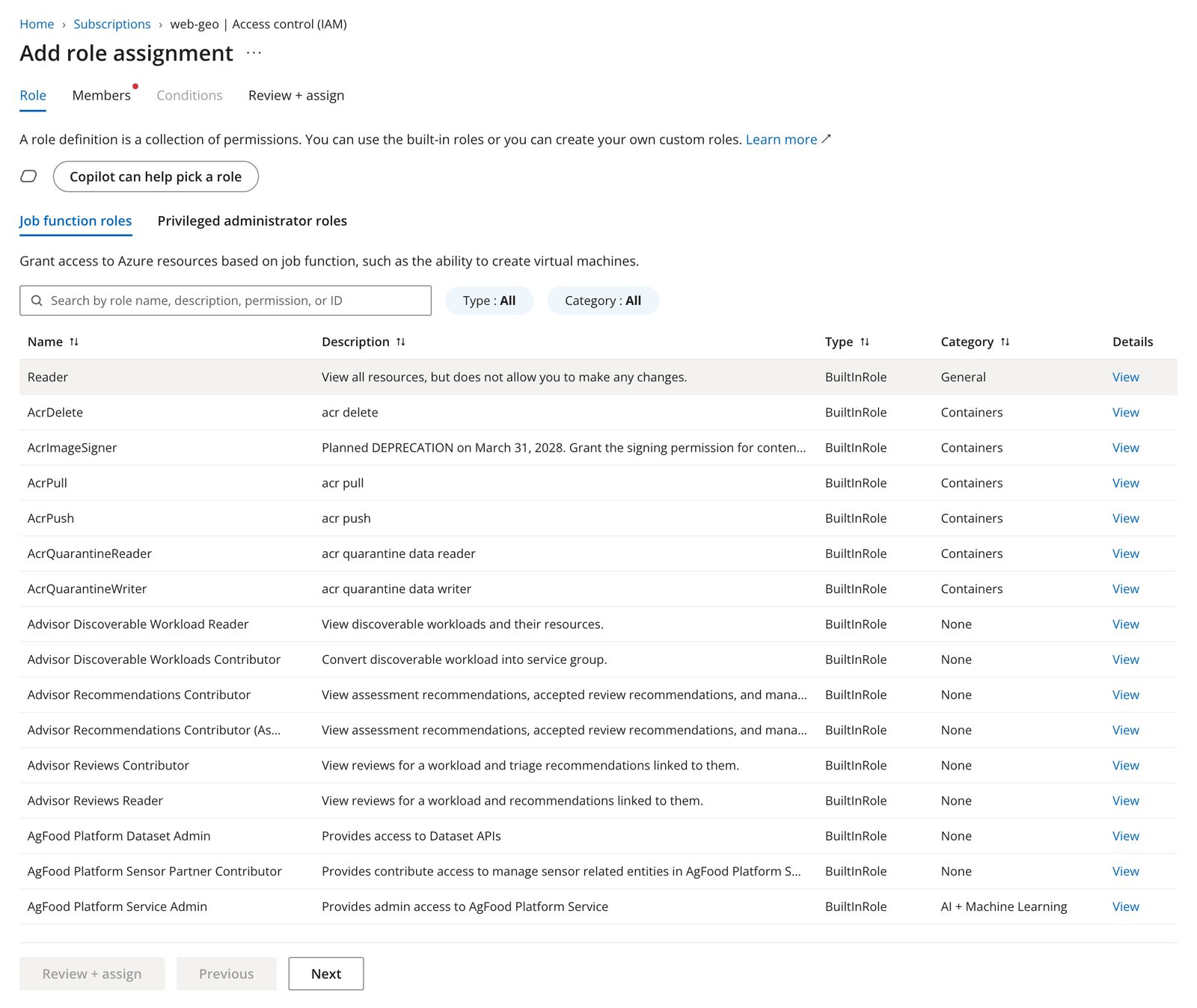
Pick the Reader role and choose Next.
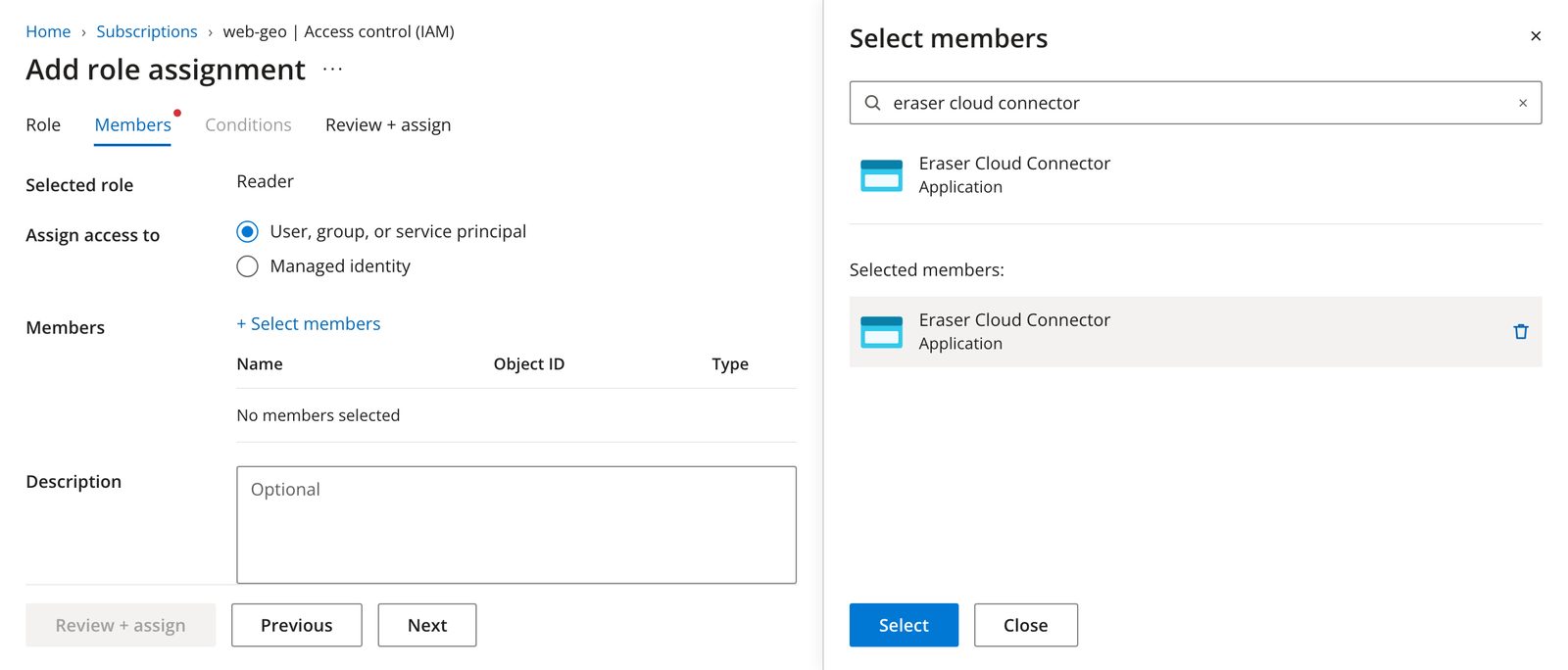
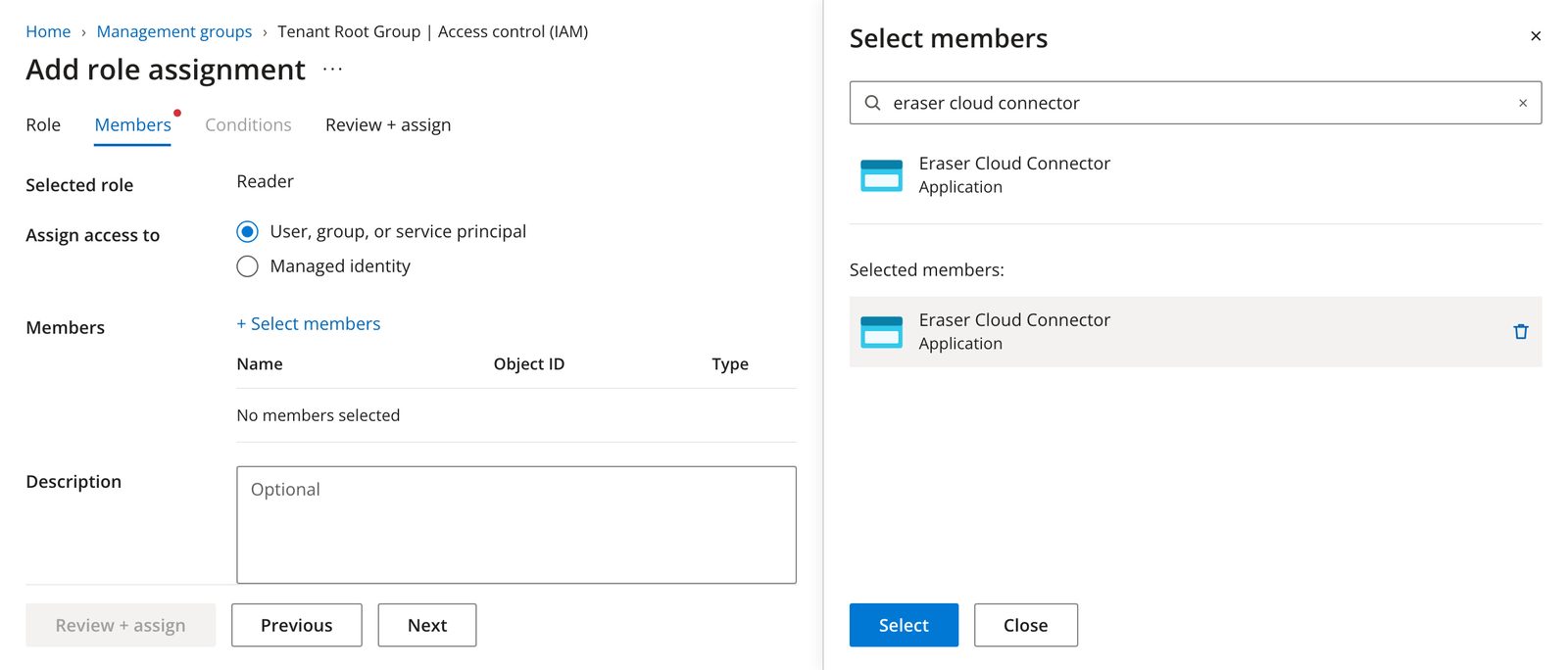
On the Members tab, choose Select members, search for Eraser Cloud Connector, select it, and complete the assignment with Review + assign.
Repeat for every subscription Eraser should map. You choose which of them to import in step 5.
On every subscription in the tenant
One assignment on the tenant root management group covers every subscription beneath it.
Choose Open Management groups in Azure and open the Tenant Root Group.
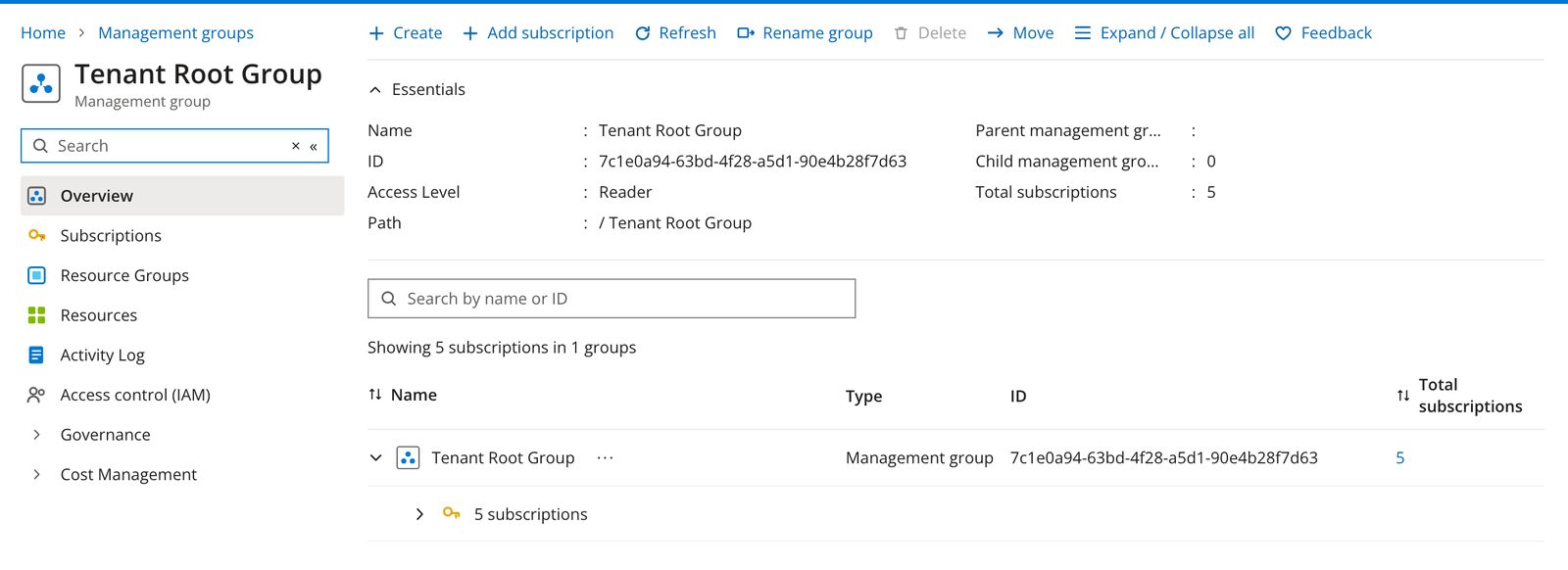
Open Access control (IAM) → Add → Add role assignment, pick the Reader role, and choose Next.
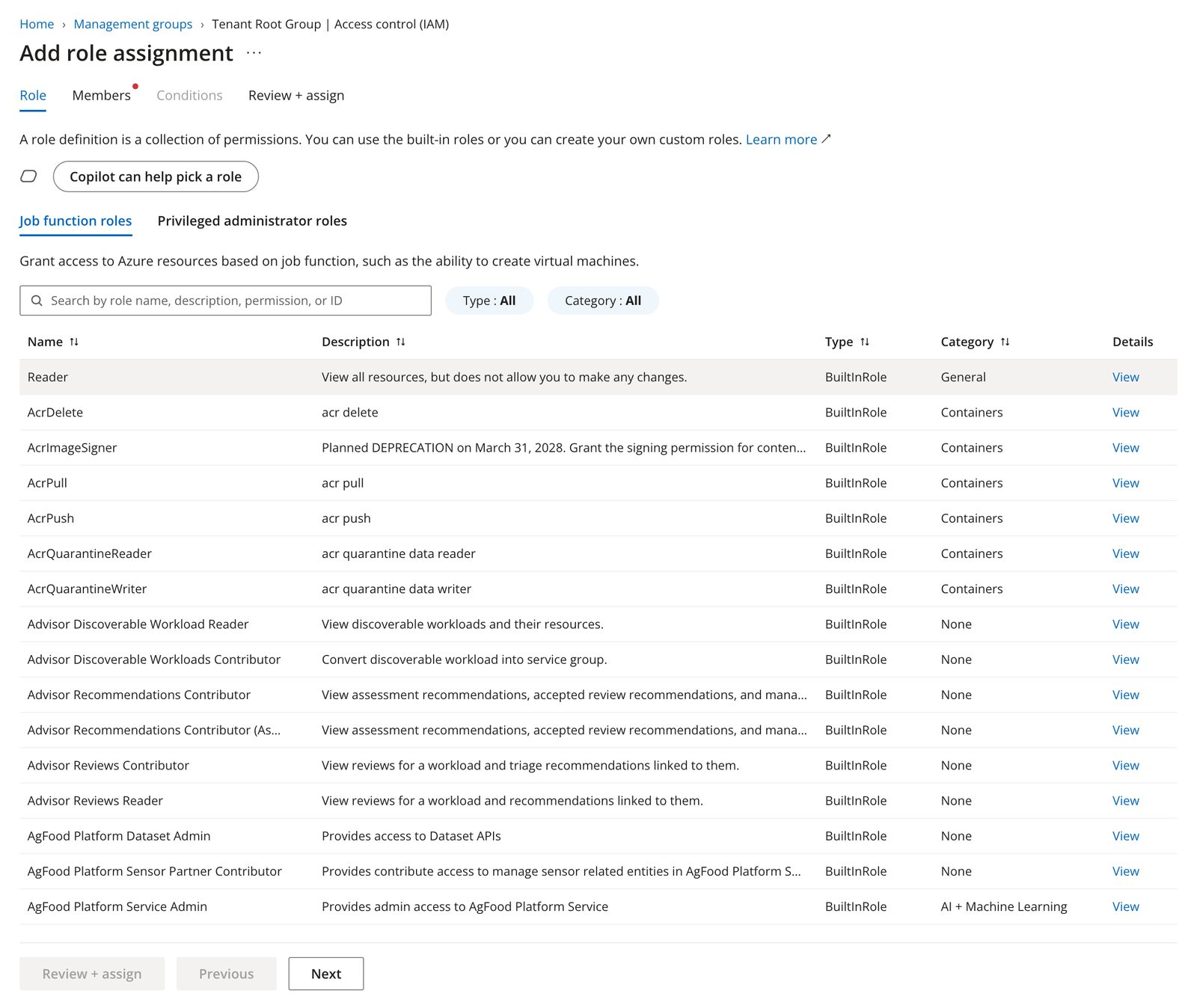
On the Members tab, choose Select members, search for Eraser Cloud Connector, select it, and complete the assignment with Review + assign.
4. Paste the IDs
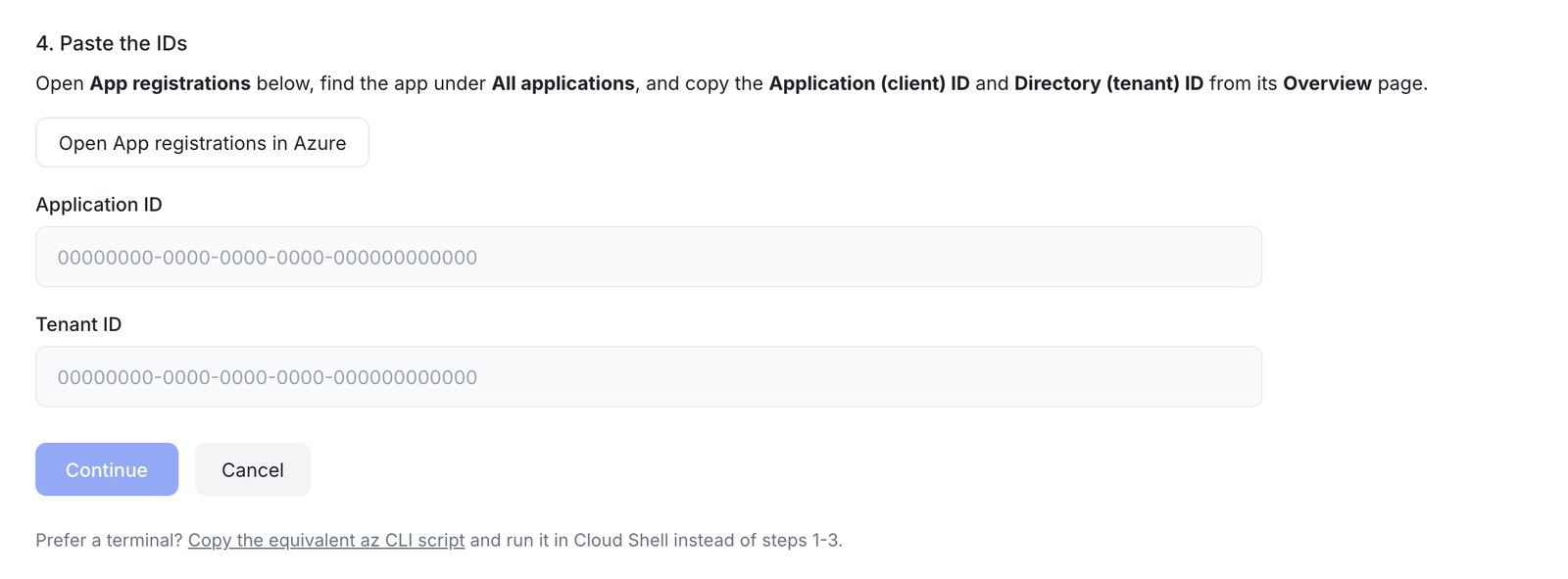
Back in App registrations, find the app under All applications and open it. Its Overview page carries both values Eraser needs.
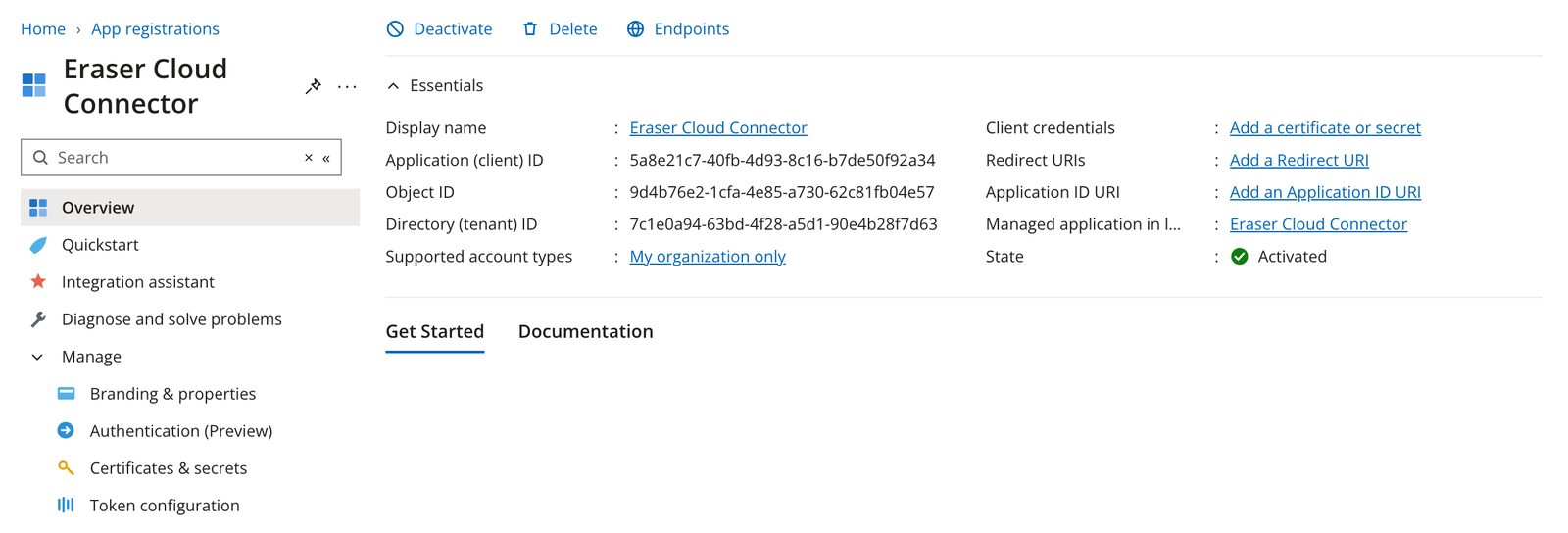
Copy the Application (client) ID and the Directory (tenant) ID into Data Sources, then choose Continue.
5. Pick the subscriptions to import
Eraser now shows every subscription the app registration can see. Tick the ones it should import.
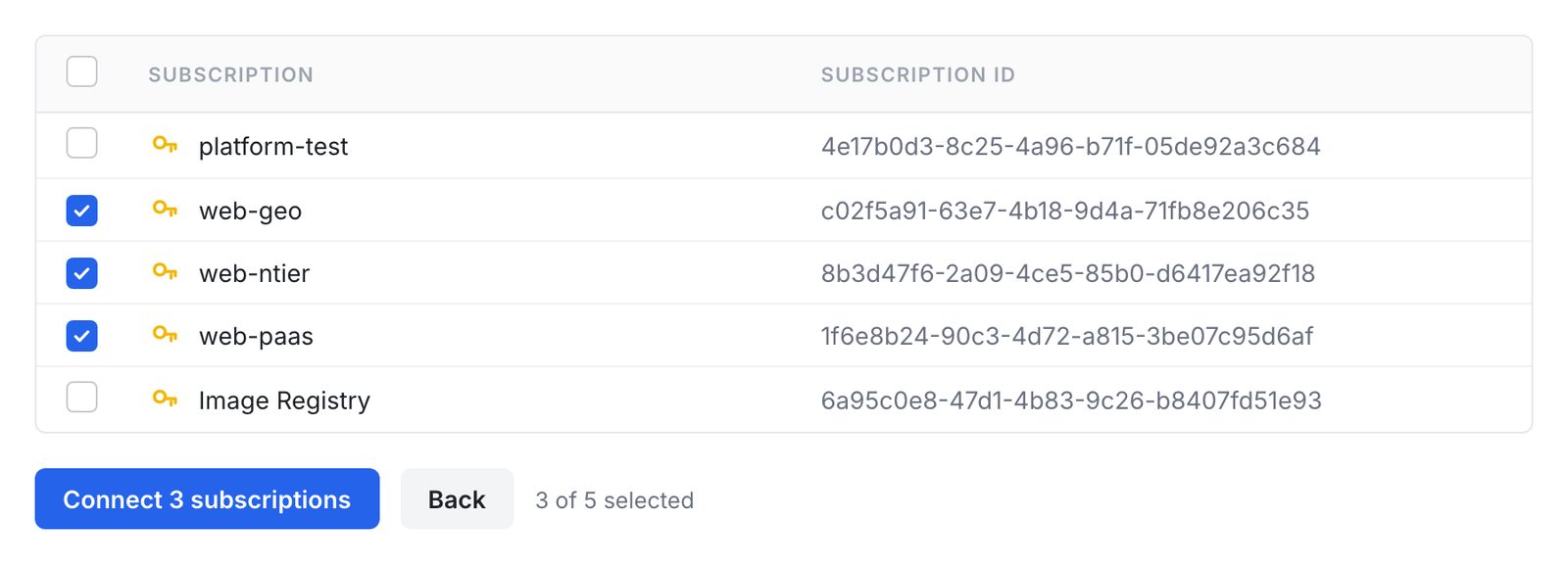
Choose Connect, and Eraser runs its first scan. To add a subscription later, grant the app Reader on it, then use Edit.
Prefer the command line?
The connect form can hand you an equivalent az CLI script that performs steps 1 to 3 in Cloud Shell. Look for Copy the equivalent az CLI script at the bottom of the form.
After connecting
Each connection appears in Settings → Data Sources, listing the subscriptions it covers and when it last synced.
- Rescan reads the tenant again. There is no scheduled background scan – Eraser reads your environment when you ask it to.
- Active lets Eraser scan the connection. Inactive stops scanning; its model keeps the last scan.
- Edit changes which subscriptions the connection imports. The tenant and application IDs can’t be changed.
- Remove from Eraser disconnects and forgets the connection.
Removing a connection does not delete anything in Azure. To revoke access completely, also delete the app registration and its role assignment.
Anyone on the team can use the connection’s model in AI chat to generate diagrams and documents – see Cloud diagrams.
Troubleshooting
| What Eraser says | What it means |
|---|---|
| The app registration cannot see any subscription | The Reader assignment from step 3 is missing, or it landed on a different scope. Assign Reader to Eraser Cloud Connector, then try again. |
| The app registration holds more than the Reader role | Something assigned an extra role. Eraser refuses write-capable access – remove the extra assignment and keep only Reader. |
| Could not connect that tenant | Usually the federated credential. Check that the Audience matches the value Eraser gave you, and that Type is Explicit subject identifier. |