Views, filters and flows
Views
The Views sidebar lists a map’s views. Add one with New view, and use a view’s ⋯ menu to rename, duplicate, copy a link to, export to HTML or delete it.
Select a box and use Add link to link it to another view, so people can click from the big picture into a system. The sidebar nests each view under the view that links to it.
Changing a map with Eraser AI
Open Eraser AI and ask for what you want: a new view, a deeper view of one system, a different grouping, filters or a flow. Each change uses AI credits. You can also edit boxes and lines by hand, as on a canvas.
Models and records
Models (Ctrl 1) lists the models on the map and adds others. Select a box to give it a record from one of them; in Present, clicking the box opens that record.
Filters
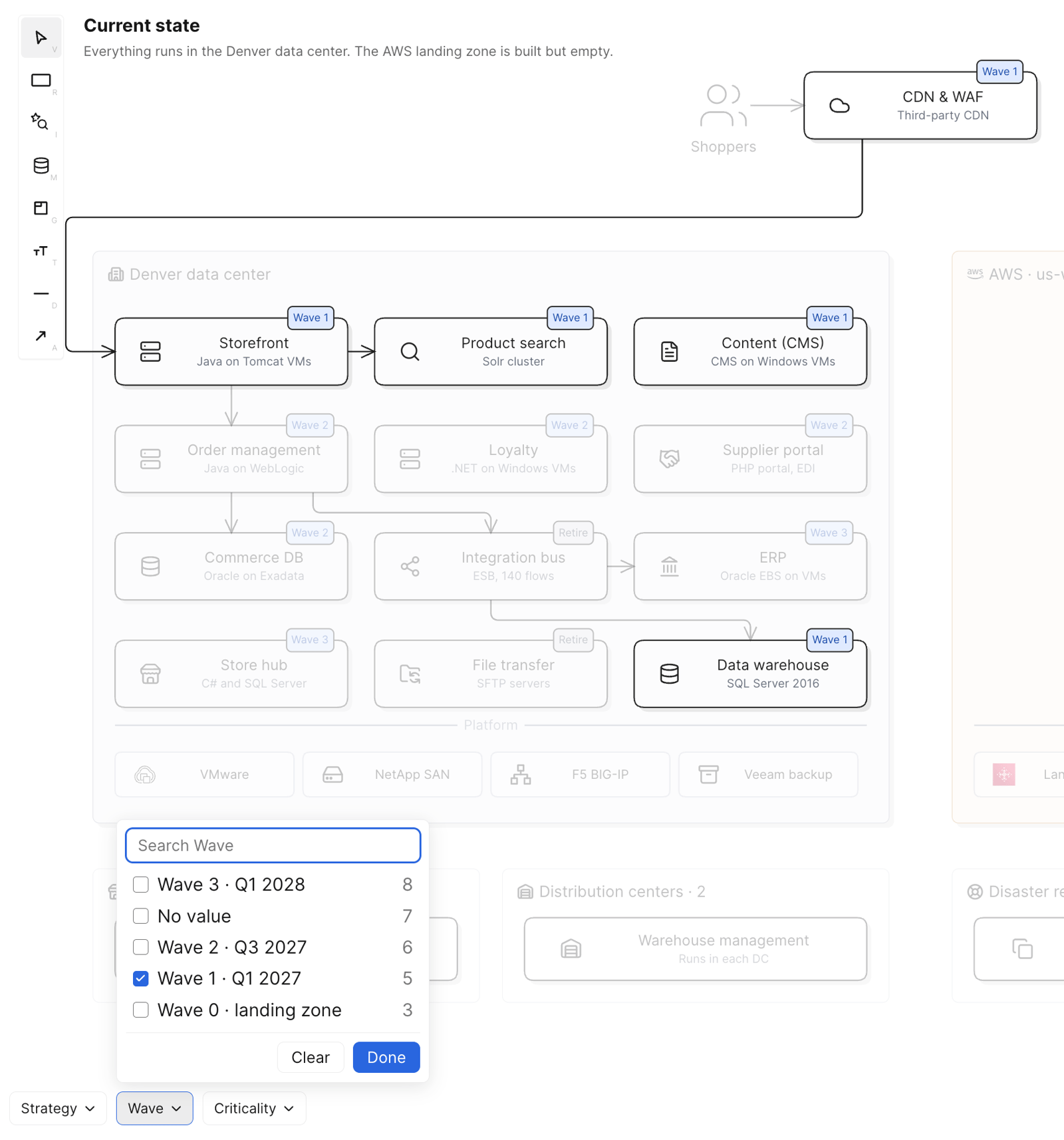
Filters (Ctrl 3) picks which fields of a view’s records to filter by, such as wave or owner. They show along the bottom of the view: check values there, and boxes that don’t match fade. Each view keeps its own filters, and a value you check carries over to the next view with the same field.
Flows
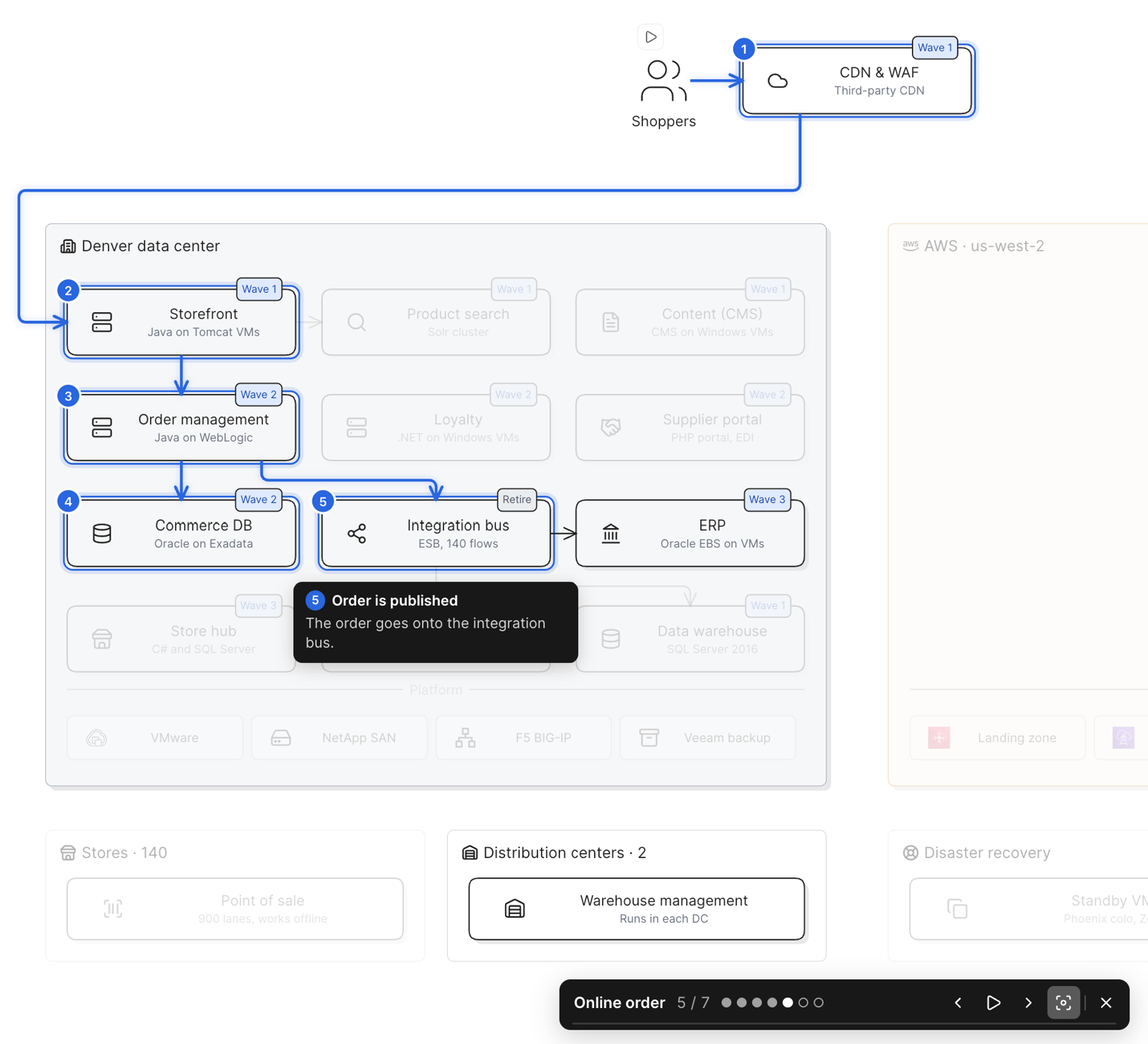
A flow walks through a view step by step – a request, a deployment, an incident. Ask Eraser AI to add one. Play it from Flows (Ctrl 2), or in Present from the button under the view’s title, and step through it with the flow bar.
Shortcuts
New view, Models, Flows and Filters are all in Command K (⌘ K / Ctrl K). In Chrome on Windows and Linux, Ctrl 1–3 switch tabs, so use Command K there.