Connecting Ardoq
Connect Ardoq so Eraser can draw architecture diagrams from the components and references in the workspaces you choose. Eraser reads Ardoq with an API token that has read access only.
Everything below starts from Settings → Data Sources in Eraser – keep that tab open, since you’ll paste the token into it.
Quick overview
- Create a read-only API token (how-to)
- Enter the connection details (how-to)
- Pick the workspaces to import (how-to)
What Eraser gets access to
Eraser reads the components, references, and fields in the workspaces you pick. When a reference points into a workspace you didn’t pick, Eraser reads the component at the other end too, so the relationship isn’t lost. Eraser never writes to Ardoq.
The token is stored encrypted and is never sent to AI.
1. Create a read-only API token
In Ardoq, create an API token and copy it, along with the organization label shown next to it.
2. Enter the connection details
Open Settings → Data Sources and pick Ardoq – from the list of data sources, or from Add connection once one is connected.
Enter your Ardoq host – app.ardoq.com, or your organization’s own ardoq.com host – the organization label, and the token.
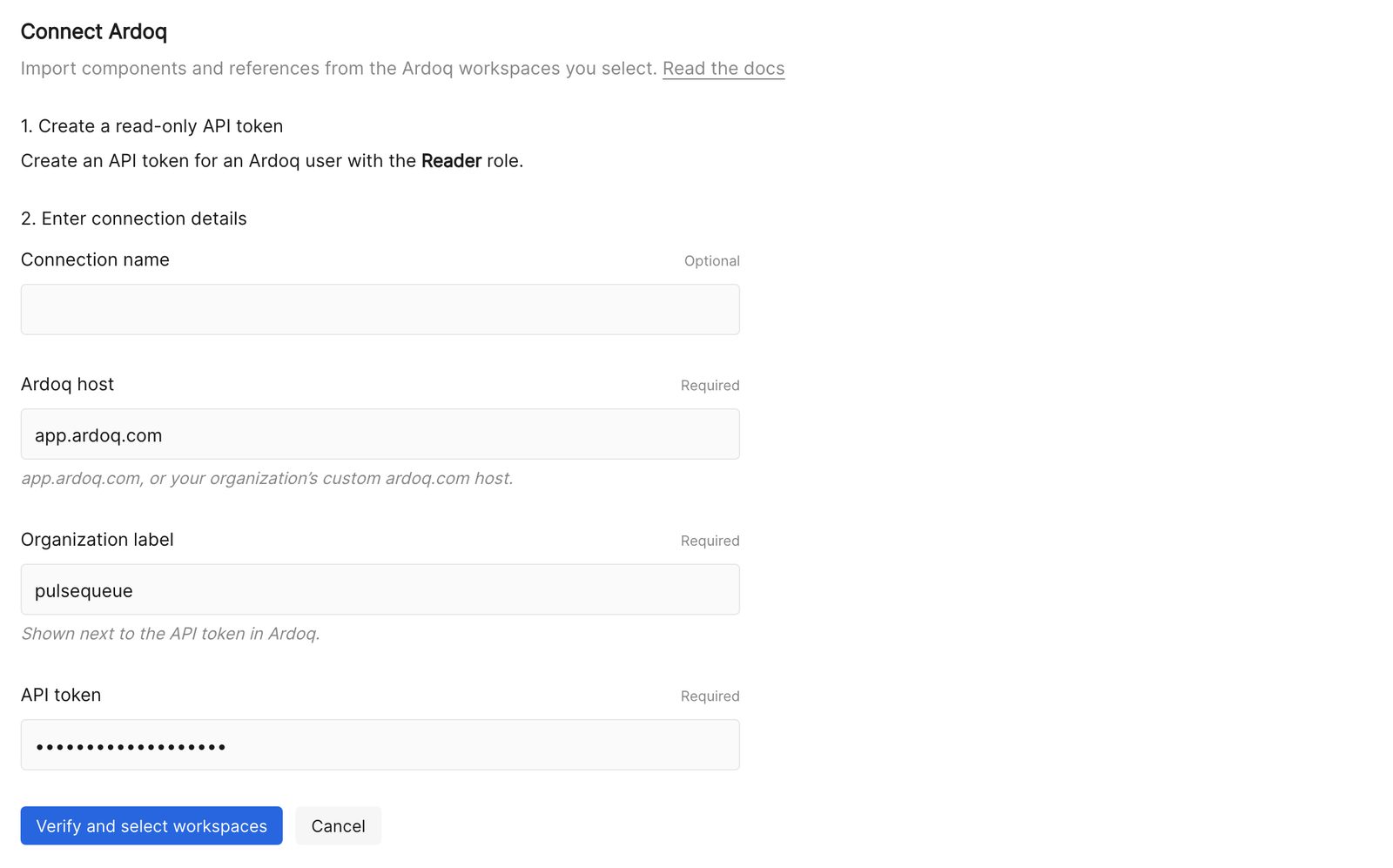
Choose Verify and select workspaces.
3. Pick the workspaces to import
Eraser now shows every workspace the token can read. Tick the ones it should import.
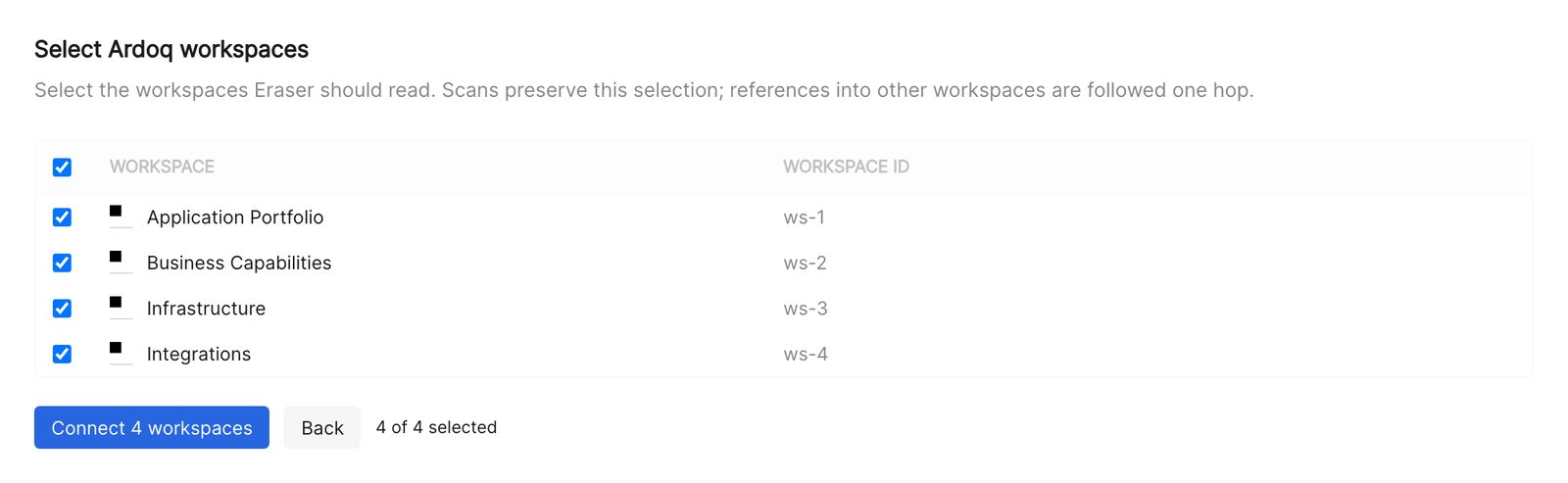
Choose Connect, and Eraser runs its first scan.
After connecting
Each connection appears in Settings → Data Sources, showing its workspaces and when it last synced.
- Rescan reads the workspaces again. There is no scheduled background scan – Eraser reads Ardoq when you ask it to.
- Reconnect replaces the token, keeping the connection’s history.
- Active lets Eraser scan the workspaces. Inactive stops scanning; its model keeps the last scan.
- Remove from Eraser disconnects and forgets the connection.
Removing a connection does not change anything in Ardoq. To revoke access completely, also delete the token.
Anyone on the team can use the connection’s model in AI chat to generate diagrams and documents – see Cloud diagrams.
Troubleshooting
| What Eraser says | What it means |
|---|---|
| Use app.ardoq.com or your organization’s custom ardoq.com host | The host isn’t an Ardoq address. Enter app.ardoq.com, or the host your organization signs in at. |
| This token belongs to the Ardoq organization … | The organization label doesn’t match the token. Use the label shown next to the token in Ardoq. |
| Authentication check failed (HTTP 401) | The token was deleted or has expired. Choose Reconnect and paste a new one. |
| An Ardoq workspace context could not be read | A selected workspace was deleted, or the token’s user lost access to it. Restore the access; otherwise, remove the connection and connect again without that workspace. |
| Ardoq inventory exceeded … rows | The selected workspaces hold too much to import at once. Select fewer workspaces. |