Cloud diagrams
Cloud diagrams are AI diagrams generated from a connected data source. Reference the data source’s model in AI chat, describe what you want, and Eraser draws it from what the last scan found – not from a description of what should be there.
Before you start
Connect a data source in Settings → Data Sources – see Data sources. Its first scan takes a minute or two and builds its model.
Generating a cloud diagram
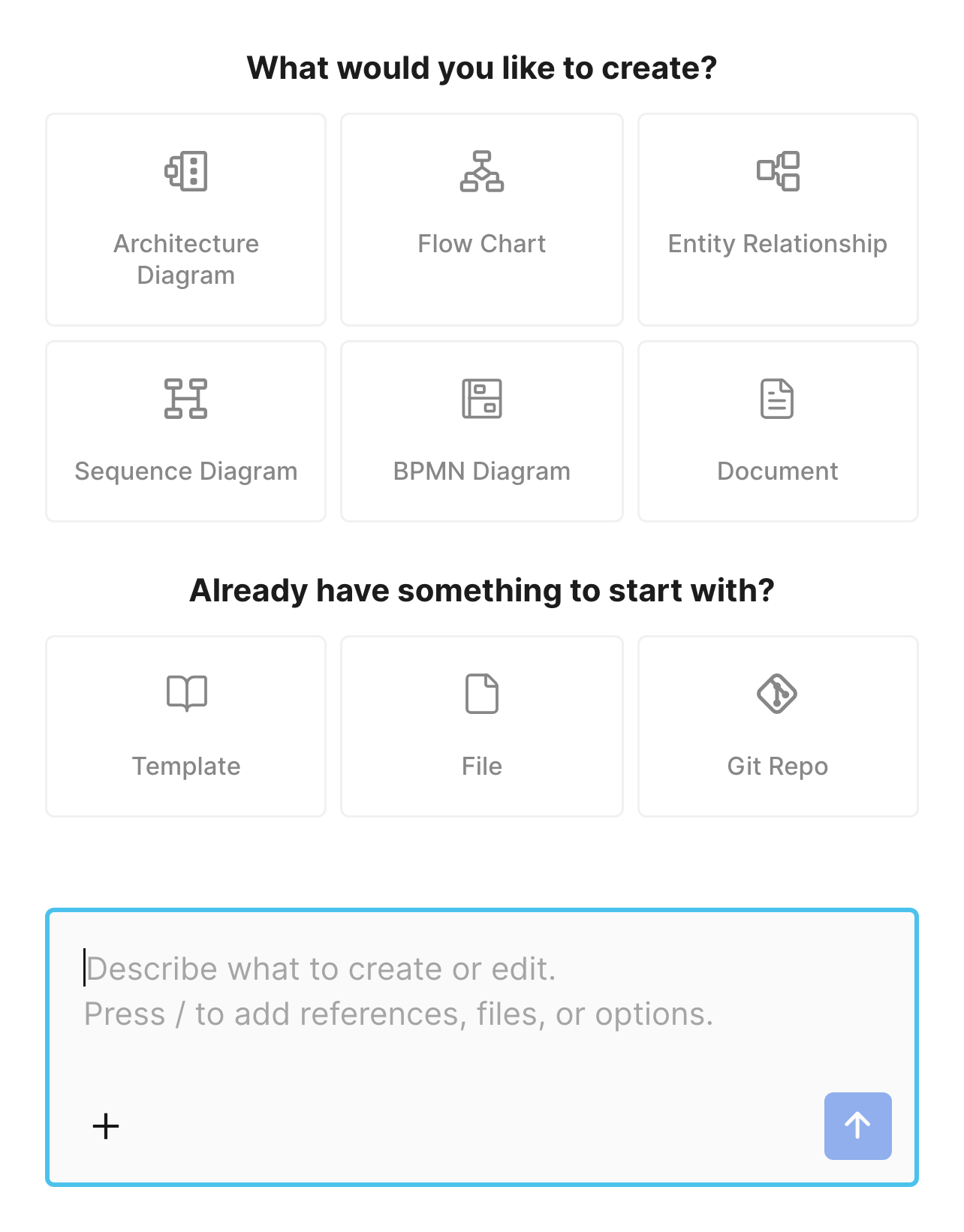
1. Open AI chat
A new chat opens on the screen below. Leave the prompt box empty for now – the reference menu only opens from an empty prompt.
2. Add a model
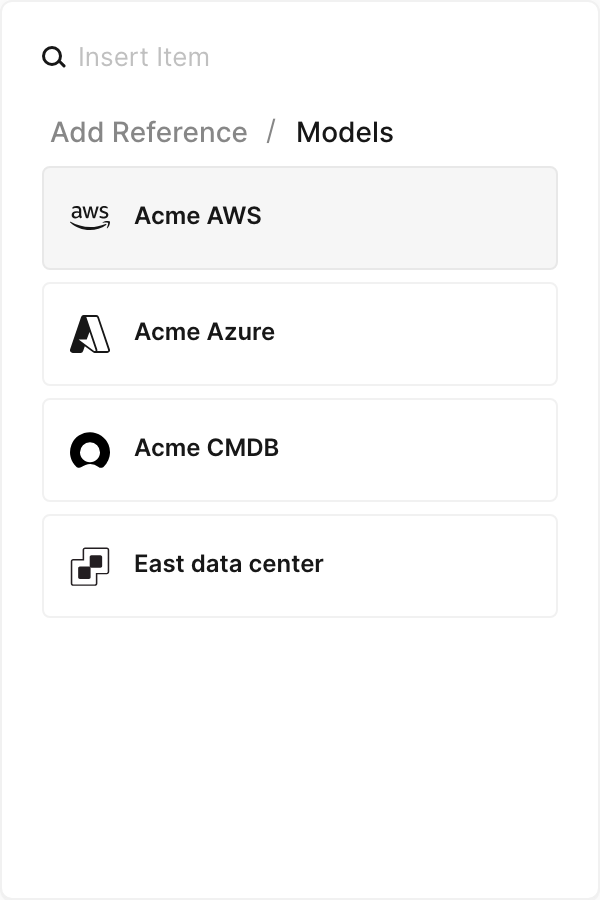
Press / and choose Models under Add Reference, then pick a model. Each is named after its data source and covers everything it imports – to diagram one account or subscription, name it in your prompt. Press / again to add more, up to five.
3. Describe what you want
Type your prompt and send it. Eraser reads the model and draws the diagram.
What to ask for
Ask for the whole environment, or for one part of it. Naming what you are after gives the best results:
- “Create an architecture diagram of the
web-geosubscription” - “Draw the VPC that contains the
ordersservice, with its subnets and load balancers” - “Diagram the
checkoutworkload – everything it talks to, and everything that talks to it” - “Draw everything deployed in
us-east-1” - “Show the network topology: VNets, peerings, and private endpoints”
- “Diagram the data stores in this project and which services connect to them”
- “Show what has access to the production database”
- “Diagram the
Checkoutapplication service from the CMDB, and the servers it runs on” - “Draw the Seattle HQ network: its switches, appliances, and how they are linked”
How Eraser reads the model
A model holds the newest scan, not the live source, and nothing scans on a schedule. If something just changed, choose Rescan in Settings → Data Sources first – or, for a VMware CSV, upload a new export.
Refining the result
Keep prompting to change the result – add a service, drop a region, group things differently. AI presets and custom styles apply to cloud diagrams the same way they do to any other AI diagram: add them from the same / menu.
You can also ask for a document instead of a diagram – an inventory of what is deployed, or a description of how a workload is wired up – with the same model attached.
Troubleshooting
| What you see | What it means |
|---|---|
| No Models in the reference menu | Your team has no models yet. Connect a data source and wait for its first scan. |
| The model ”…” has no records yet. Import its data, then try again. | Its first scan hasn’t finished. Wait, or choose Rescan. |
| At most 5 models can be read at once. Remove some from the context, then try again. | Remove models until five or fewer are attached. |